Face and expression
A GTA 6 filter changes the drawing style, so small details may shift. Check the eyes, smile and hairline first. Ask for recognizable facial features rather than a different character's face.
YOUR PHOTO. YOUR LOADING SCREEN.
Turn a clear photo into bold, illustrated loading-screen art. The GTA 6 filter redraws your face, clothes and surroundings with dark outlines and painted shadows. Keep your original setting, try a coastal sunset or give your pet a starring role. Start with your own photo and choose the look you want.
Create with GPT Image 2.0. Review the selected settings and credit cost before generating.
Keep my setting
Start with the place that makes your photo yours. This GTA 6 filter example keeps the yellow sweater, flower field and hand pose, while changing the whole picture into an illustration. Look at the hair edges, folds of fabric and flowers: the treatment should reach the background as well as the face.

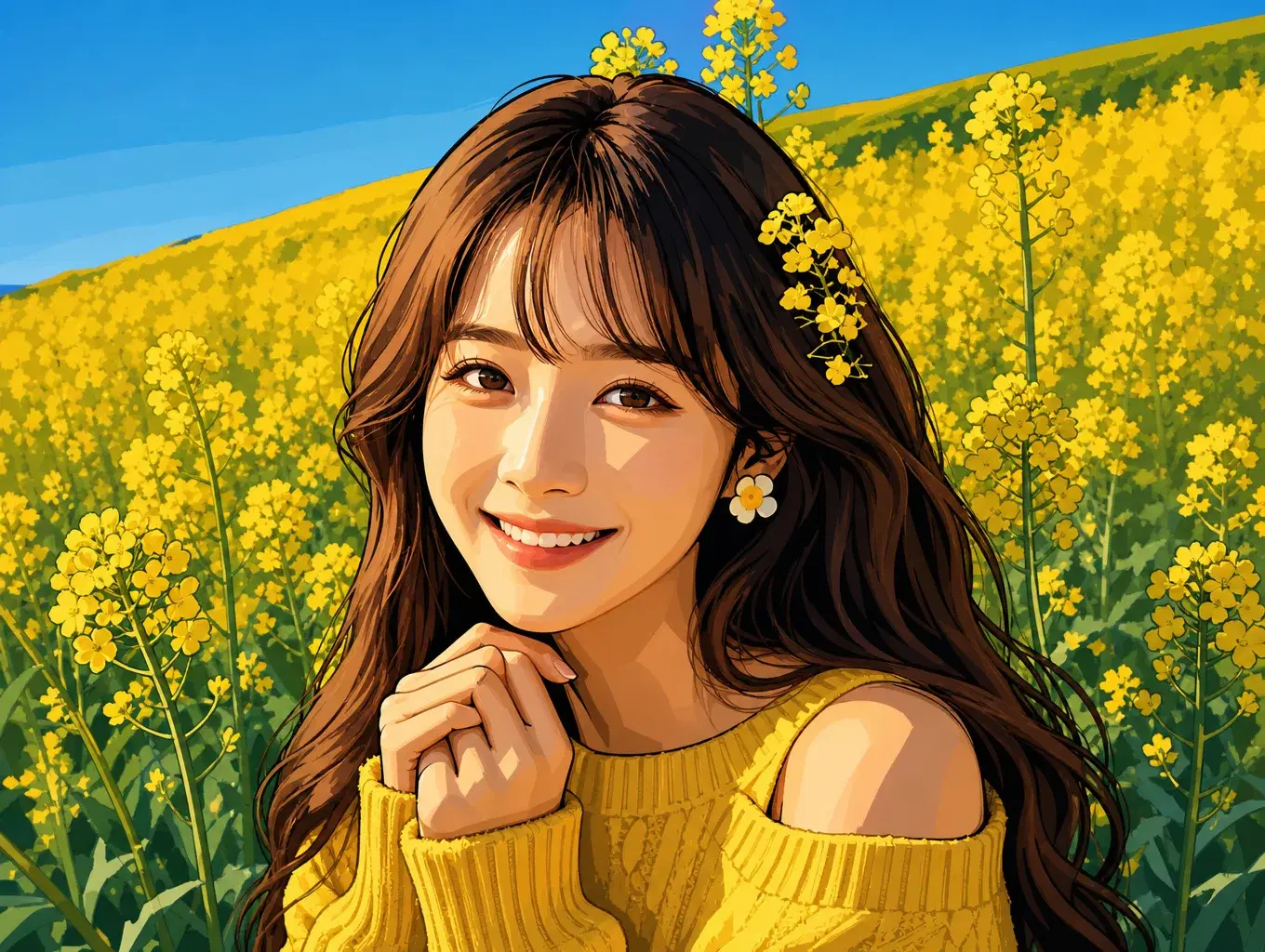
For a GTA 6 filter with a familiar look, name the details you want to keep. A simple background helps the subject stand out. If the result looks too much like a photograph, ask for stronger ink outlines and larger areas of flat color instead of adding more visual effects.
Apply a GTA 6 filter to the supplied photo: redraw the entire image as a game loading-screen illustration. Preserve the recognizable face, hair, expression, clothing, pose and framing. Keep the original setting. Use bold black ink contours, flat blocks of color and crisp painted shadows on both subject and background. No words, logos, borders or game interface.
Coastal sunset
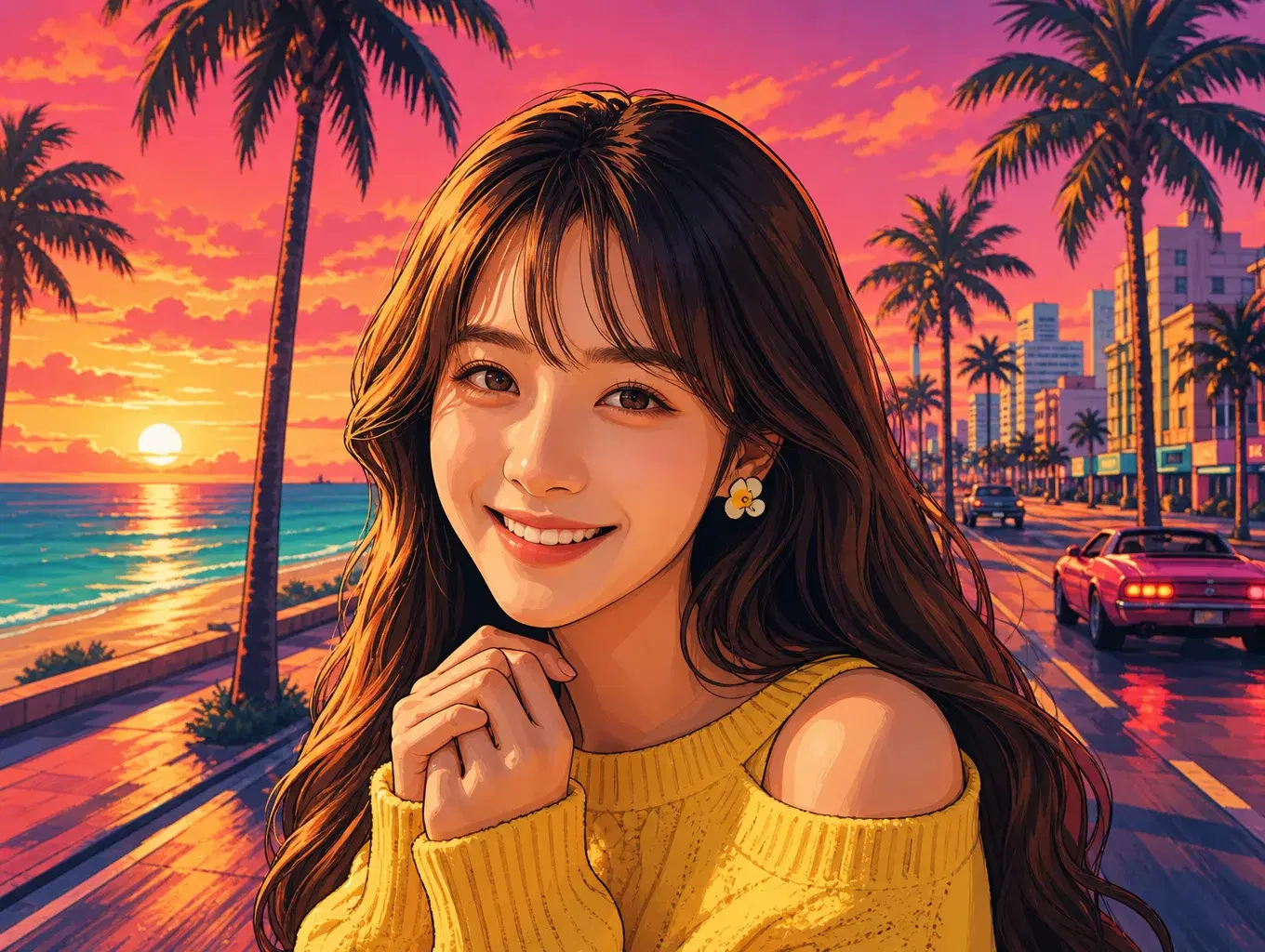
Choose this GTA 6 filter look when you want a new setting without losing the person in your photo. Palm trees, a warm sky and a distant ocean give the image a Vice City-inspired mood. Keep the face and outfit as your anchor, then ask the AI to change the surroundings.
A close-up works well for an avatar. For a wider GTA 6 filter poster, use a waist-up photo with room around the shoulders. Leave space above the head if you plan to crop it into a phone wallpaper. Check that the background and face share the same illustrated finish.
Apply a GTA 6 filter to the supplied photo. Keep the person recognizable, including their face, hair, expression, clothing and pose. Replace the background with a palm-lined coastal boulevard at a coral sunset, with a turquoise ocean and distant buildings. Render both person and setting as a loading-screen illustration with bold black outlines and clean painted shadows. Keep the original framing. No words, logos or game interface.
Pet character
Your cat or dog can be the hero, too. Use the GTA 6 filter to turn a clear pet photo into a character poster. In this example, the blue eyes, gray ears and white fur are the details to watch. Keep the animal's natural body and pose while changing the colors and shading.
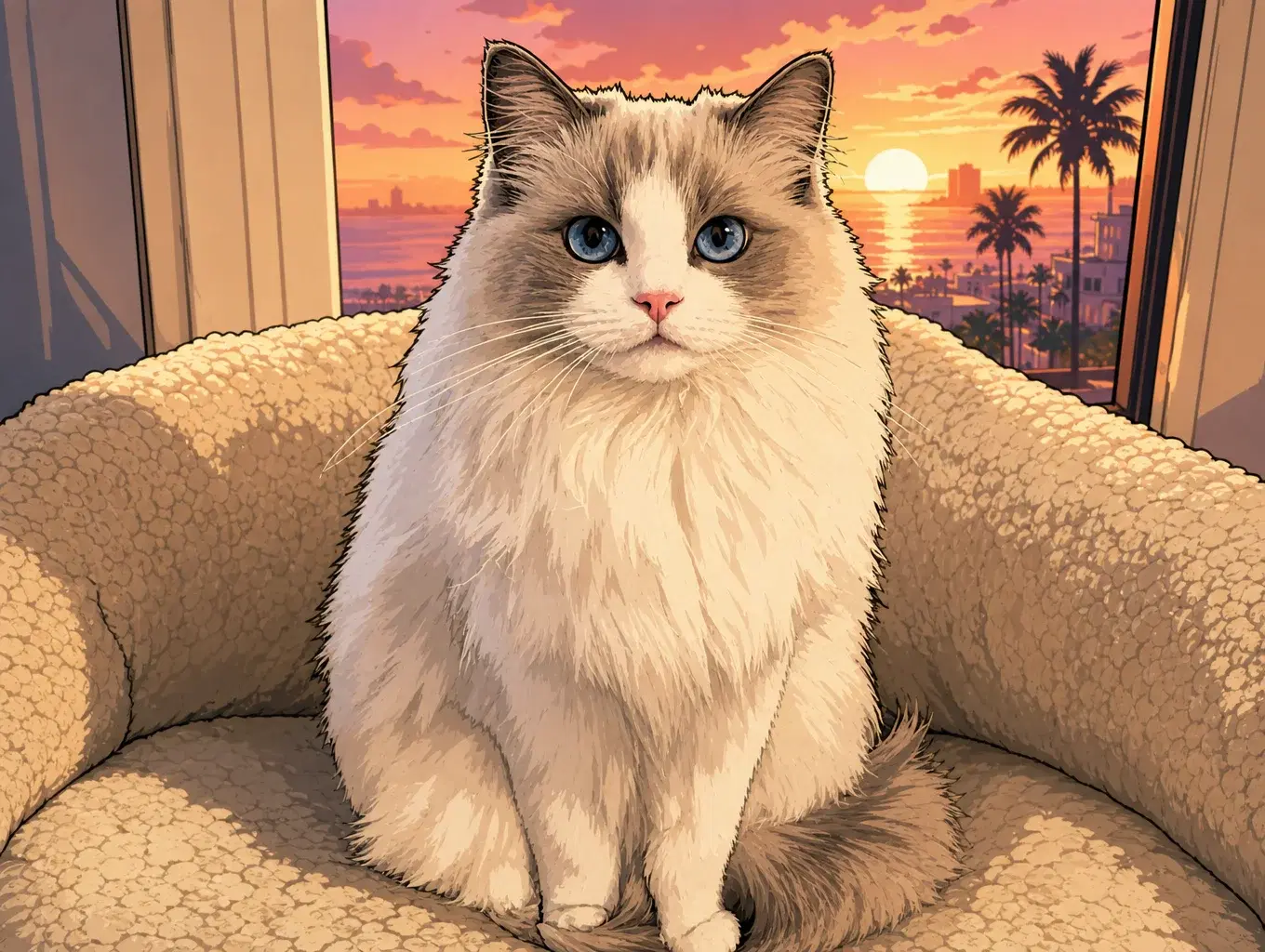
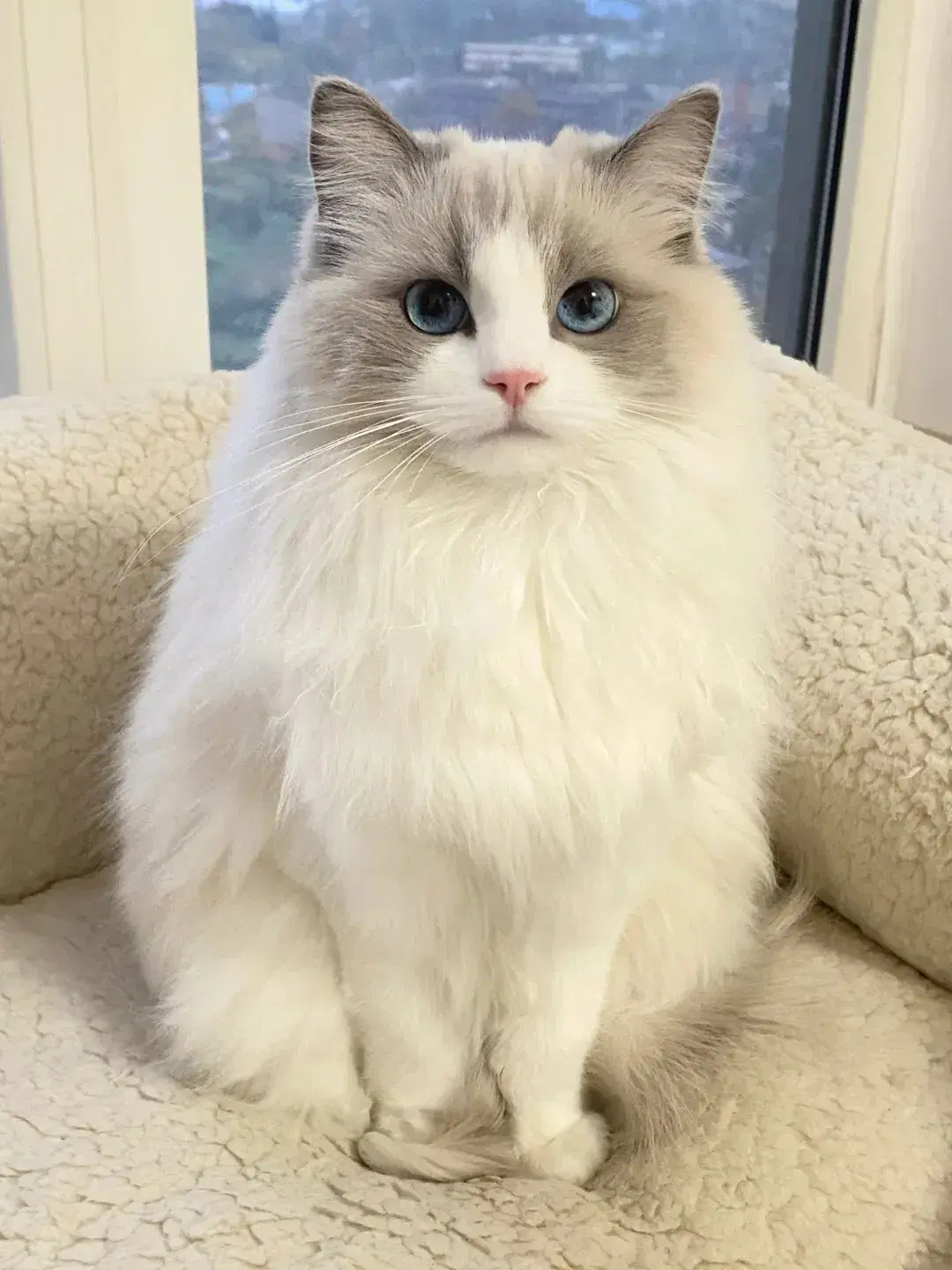
For a recognizable GTA 6 filter pet portrait, describe the markings around the eyes, nose and ears. Use a photo with the whole head visible. If fur becomes too smooth or the pattern changes, simplify the background and ask the model to preserve the original coat pattern more closely.
Apply a GTA 6 filter to the supplied pet photo. Keep the animal's eye color, fur markings, ears, nose, pose and natural anatomy. Redraw the pet and its surroundings as a loading-screen illustration with bold black outlines and flat painted shadows. Add a warm coastal sunset in the background. No human body, costumes, words, logos or game interface.
01
Give the GTA 6 filter a well-lit image with an unobstructed face. Avoid tiny screenshots, heavy beauty filters and hands covering the eyes. A head-and-shoulders photo is a good first test. Use a wider image when the outfit or setting matters as much as the face.
02
Choose a GTA 6 filter example and click its create button. Upload your photo in the editor. Review the prompt and adjust the details you want to keep. Select an aspect ratio for your intended use and check the model, quality and credit cost shown in the editor before starting generation.
03
Compare your GTA 6 filter image with the original. Check the face, fingers, clothing and background. If something important changed, name that detail in the prompt and try again. Save the version you like, then check the final crop at the size where you will share it.
A GTA 6 filter changes the drawing style, so small details may shift. Check the eyes, smile and hairline first. Ask for recognizable facial features rather than a different character's face.
The GTA 6 filter works best when the subject and background look painted together. If the face is illustrated but the setting stays photographic, ask to redraw the entire image.
Preview your GTA 6 filter artwork as a small avatar or tall wallpaper. Keep eyes away from the crop edge. Choose dimensions in the editor; a prompt alone does not set the output size.
No. This GTA 6 filter creates independent, fan-inspired artwork on Collart. It is not affiliated with Rockstar Games or Take-Two. The output is an image for you to use as a portrait, poster or wallpaper; it does not add a character to the game.
The GTA 6 filter looks above include a starting prompt. Choose one and adjust the scene, outfit or details to preserve. You can also copy a prompt from an example. Change one instruction at a time so you can see what improves the result.
Generation uses Collart credits. The GTA 6 filter cost depends on the model, quality, resolution and number of images you choose. Check the amount shown in the editor before generating. Available credits depend on your account; this page does not promise unlimited free generations.
Yes, you can use the finished GTA 6 filter image as the starting image for a separate image-to-video task. Begin with a simple camera move. A character-switch sequence or a multi-shot trailer needs its own setup; it is not included in this photo effect.
Choose the GTA 6 filter look closest to your idea and keep the first edit simple. Once you like the character illustration, explore other image edits or turn the finished picture into a short moving scene.