Your people. Your pets. A little holiday magic.

AI Christmas Photo Generator

Make a Christmas photo with the people and pets that matter to you. Start with a favorite picture, choose a festive scene, and adjust the details in Collart. Explore a snow-globe portrait, a cozy couple photo or a playful pet grid, with prompts you can make your own.

Sign in to generate. Model availability, trial options, input limits and credit costs are shown in the editor.

Original portrait used in the snow-globe example.
Starting photo
The same portrait reimagined inside a festive glass snow globe.
Christmas photo idea

Choose a scene, then make it personal

Three ways to make a Christmas photo

A useful Christmas photo starts with a clear choice: who should stay recognizable, and what should change? These examples show different directions. Keep the parts that matter to you, then change the setting, outfit or crop in the prompt. Check every result against your original picture.

A clear portrait before the snow-globe transformation.
Starting photo
A winter portrait inside a glass snow globe with festive lights.
Christmas photo idea

Christmas photo check: compare the face, the shape of the hands and the glass edge. Reflections should add atmosphere without covering the person.

01 / A portrait

A Christmas photo inside a snow globe

Place one person in a winter scene without losing the focus on their face. This Christmas photo idea combines soft snow, miniature trees and warm lights around a single subject. A clear portrait helps you compare the face and expression before and after.

For a quieter Christmas photo, reduce the decorations and keep the background soft. Change the coat color or remove the hat if you prefer. Ask for a little space around the globe so its glass edge is not cropped away.

Create a Christmas photo using the person in my reference image. Keep their face, hairstyle and expression recognizable. Place them inside a large clear glass snow globe, wearing a white winter coat and a red Santa hat. Add small snowy pine trees and gentle falling snow. Show a cozy room with warm lights in the background. Keep the glass clear around the face. Do not add words or a year.
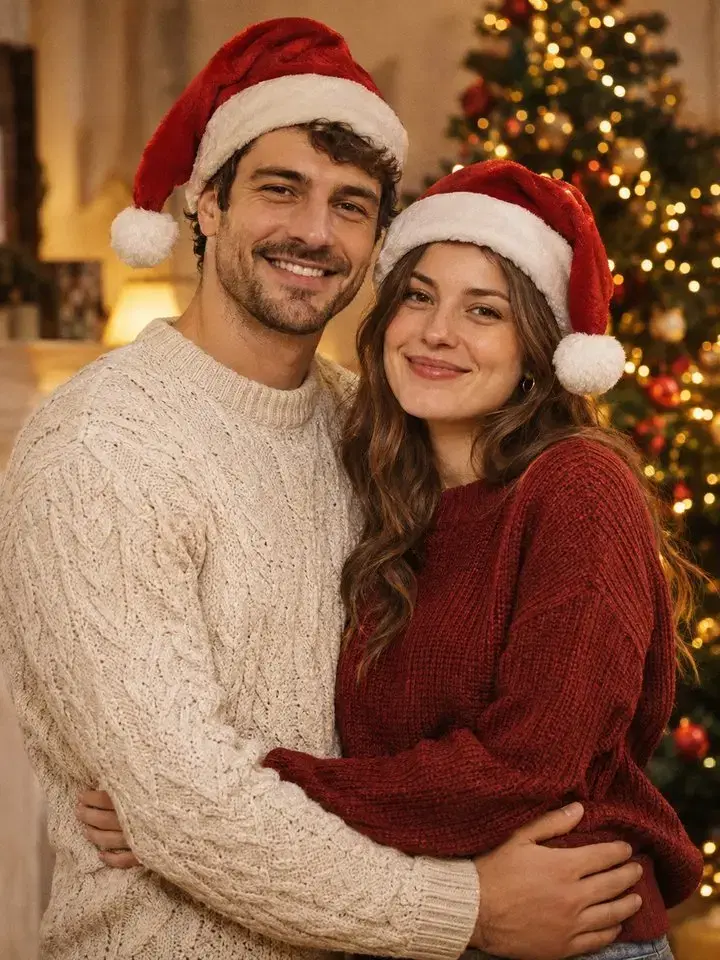
Two people together in the festive Xmas Moment template example.
Xmas Moment · two-photo template

Christmas photo check: inspect both faces separately. Then look at shoulders, hands and relative height. A flattering composition should still look like the people you chose.

02 / Together

A Christmas photo with both of you

A couple Christmas photo works best when both people are easy to recognize. The existing Xmas Moment template brings two portraits into a cozy holiday scene. Use photos with similar lighting and clear faces, then review how the people sit together in the result.

Keep your Christmas photo simple: warm lights, a relaxed pose and clothing you like. Avoid asking for a large group when your inputs show two people. You can copy this prompt for a separate image-editing workflow or open the two-photo template.

Create a cozy Christmas photo of the two people in the reference images. Keep both faces recognizable and preserve their clothing. Add simple red Santa hats and a softly lit Christmas tree behind them. Let them stand close together and look toward the camera. Use a gentle vintage-photo look with warm light. Keep their hands natural. Do not add lettering or a year.

The original pet portrait used for the festive grid.
Starting photo
The same pet shown in a nine-panel festive outfit grid.
Christmas photo idea

Christmas photo check: compare fur markings across all nine panels. Count ears, paws and tails, and make sure a costume has not become part of the animal’s body.

03 / The furry family member

One pet, nine Christmas photo ideas

Turn one pet portrait into a playful Christmas photo grid. Use the same animal in each panel, with different festive outfits and expressions. This direction works well for a greeting-card layout or a cheerful post, especially when the fur markings remain easy to recognize.

Choose a Christmas photo input that shows the eyes, ears and coat pattern clearly. If a nine-panel result changes your pet too much, begin with one portrait and fewer accessories. Keep the outfit comfortable-looking and avoid props covering the face.

Create a Christmas photo grid from my pet photo. Make one image with a red background and a 3 by 3 layout. Show the same pet in all nine panels, with different festive sweaters, scarves and simple Santa hats. Preserve the pet’s fur colors, markings, ears and eye color. Use realistic photo lighting and playful expressions. Do not add other animals, words or a year.

Make your own Christmas photo

Start small and change one thing at a time. A Christmas photo is easier to refine when you can tell which choice improved it. Keep your original picture nearby so you can compare the person or pet after each attempt.

  1. 01

    Choose the right picture

    Use a sharp, well-lit photo you own or have permission to edit. For a Christmas photo of a person, keep the face visible. For pets, show the distinctive markings. Avoid screenshots with text, heavy beauty filters or objects covering the subject.

  2. 02

    Choose a scene and adjust it

    Open a Christmas photo prompt or template above. Upload the required photos and check the selected model. Edit the scene, colors and clothing as needed. Keep a clear instruction about the features you want preserved, rather than adding many conflicting styles.

  3. 03

    Review, then download

    Check the displayed cost before generating. Review your Christmas photo at full size, especially faces, hands and small accessories. Save the version you prefer from your creations. For greeting cards, add final text separately so you can control spelling and placement.

A Christmas photo should still feel like yours

Festive details are easy to notice, but small mistakes can hide inside a busy scene. Use this Christmas photo checklist before sending a card, printing a gift or posting your result.

Keep familiar features

Compare the Christmas photo with the original. Check eye shape, hairstyle and expression, or a pet’s coat markings. If too much changes, simplify the scene and state clearly which features should stay.

Leave room for the final crop

Plan where the Christmas photo will go. Keep faces and important details away from the edges. A portrait card and a wide banner need different crops; preview the final format before printing.

Check tiny details

Zoom into the Christmas photo to inspect hands, jewelry, hat edges and repeated ornaments. Ask for fewer accessories when the picture becomes cluttered. Regenerate a problem area or choose another result instead of hiding it with more decoration.

Add readable words last

Keep the generated Christmas photo free of lettering when possible. Add names, a greeting or the correct year afterward in your design tool. Check the spelling and contrast at the size your friends will actually see.

Christmas photo questions

Can I create a Christmas photo without a studio shoot?

Yes. Start from a photo you already have and use image editing to change the setting or outfit. A sharper source gives you more useful detail, but the result still needs review; identity and small details can change.

Can I include two people in one Christmas photo?

The Xmas Moment template takes two photos. Other workflows depend on the selected model and its input limit. Use clear images of each person and check both faces after generation.

Can the Christmas photo generator keep my pet’s markings?

Include that request in your prompt and upload a clear reference. Check the pattern across the whole result, especially in a grid. Preservation is a goal, not a guarantee; a simpler single portrait may be easier to refine.

Is every Christmas photo free to generate?

Availability depends on your account and selected model. Check current free options, trial allowances and the displayed credit cost before starting. A template preview does not mean generation or every retry is free.

Can I print or sell my Christmas photo?

Check the downloaded file at your intended print size. Commercial use depends on the applicable plan, terms and rights to your inputs. Obtain permission for other people’s photos and any protected material you include.

Start with a picture you love

Choose one Christmas photo idea, keep the details that make it personal, and adjust the rest. Explore more image prompts if you want to try a different setting after the holidays.