Images, video & creative possibilities
Dreamina AI Image & Video Generator
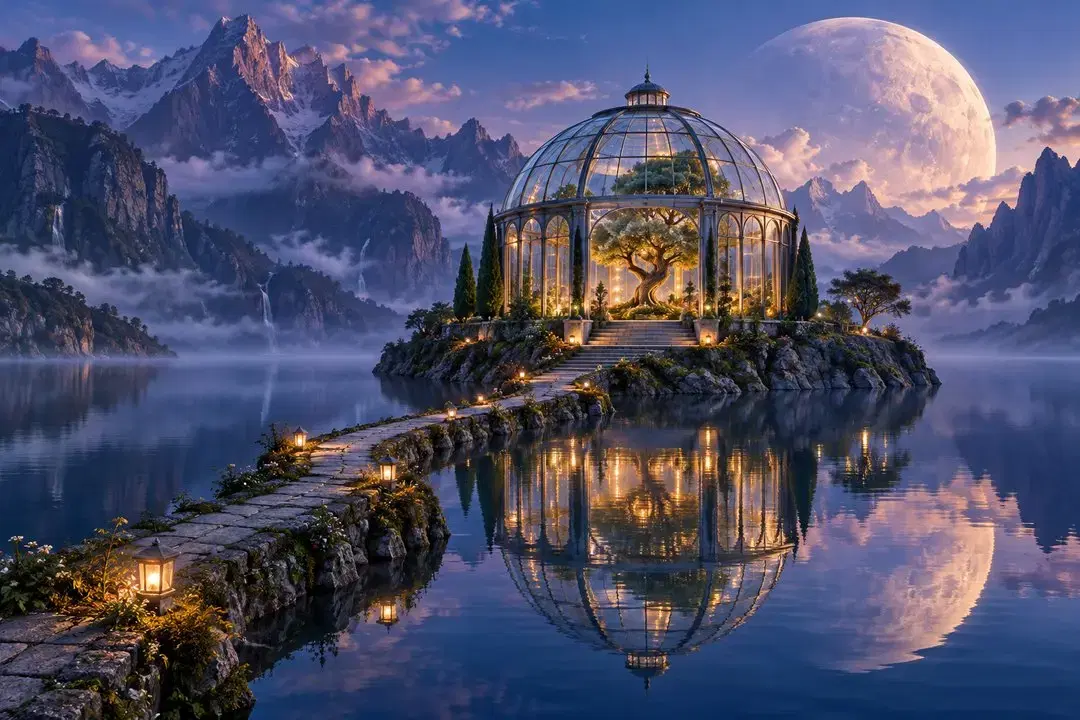
Explore Dreamina AI for image generation, video creation, and visual editing. See how its workflows compare, then bring your own prompt or reference to Collart to start creating.
This is a Collart guide to Dreamina AI. The creation tools on this page open Collart, an independent service.
What can you create with Dreamina AI?
Image generation
Turn a written idea or reference photo into an image. Dreamina offers image models and style options for illustrations, character concepts, product scenes, and social visuals. Start with a subject, then describe the composition and look you want.
Video generation
Build a moving scene from text, a still image, or reference material. Dreamina’s video tools cover subject action and camera movement; supported inputs and controls depend on the selected model. A short scene brief helps define what should happen on screen.
Image editing
Continue working on an image after generation. Dreamina includes tools for inpainting, removing objects, expanding the canvas, and retouching. These workflows suit local changes, such as clearing a background or extending a composition for another format.
Ideas into images & motion
Two briefs. An image and an action.
Explore product composition with a ceramic mug, then direct a fox leaping across a stream. Each example has its own reference and adaptable prompt.
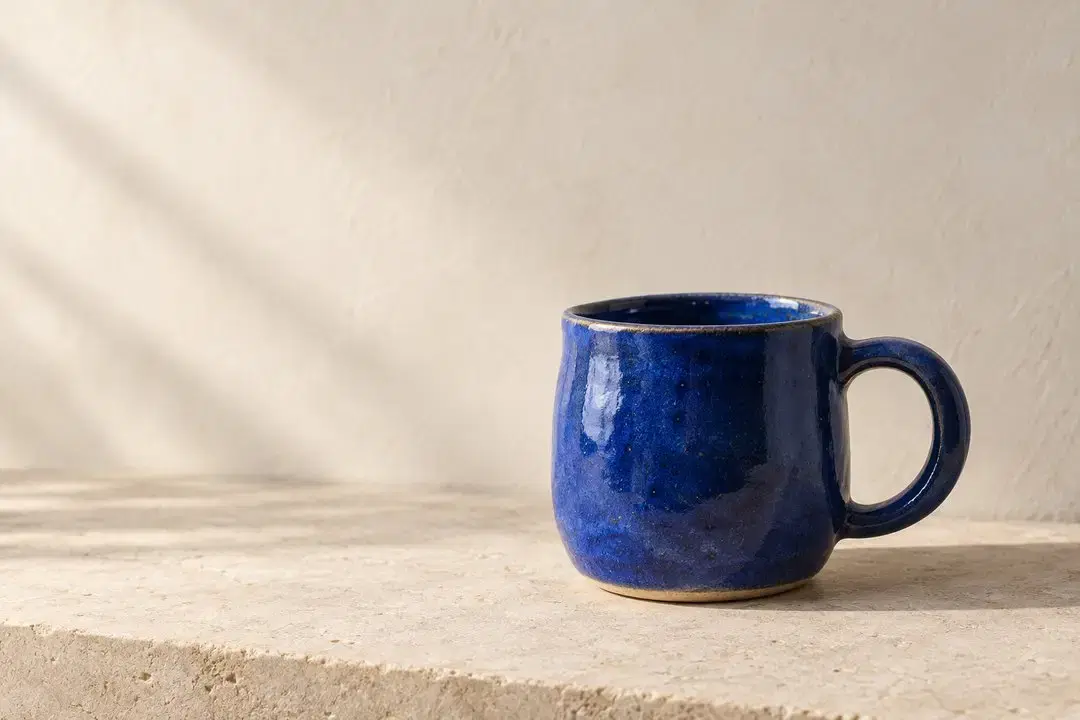
01 / Build the still
Give the subject room to breathe
An editorial product photograph of a handmade cobalt-blue ceramic mug on a pale stone ledge. Soft morning light from the left, a gentle shadow to the right, subtle glaze texture. Place the mug in the lower-right area, leaving open space above and to the left for a headline. No lettering or extra objects.
Replace the mug and its color to fit your brief. Keep the lighting and placement fixed while comparing variations. Inspect the handle, rim, and shadow before moving on; if the scene is crowded, simplify the background description.
Open with this image prompt02 / Add motion
One clear leap. A steady camera.
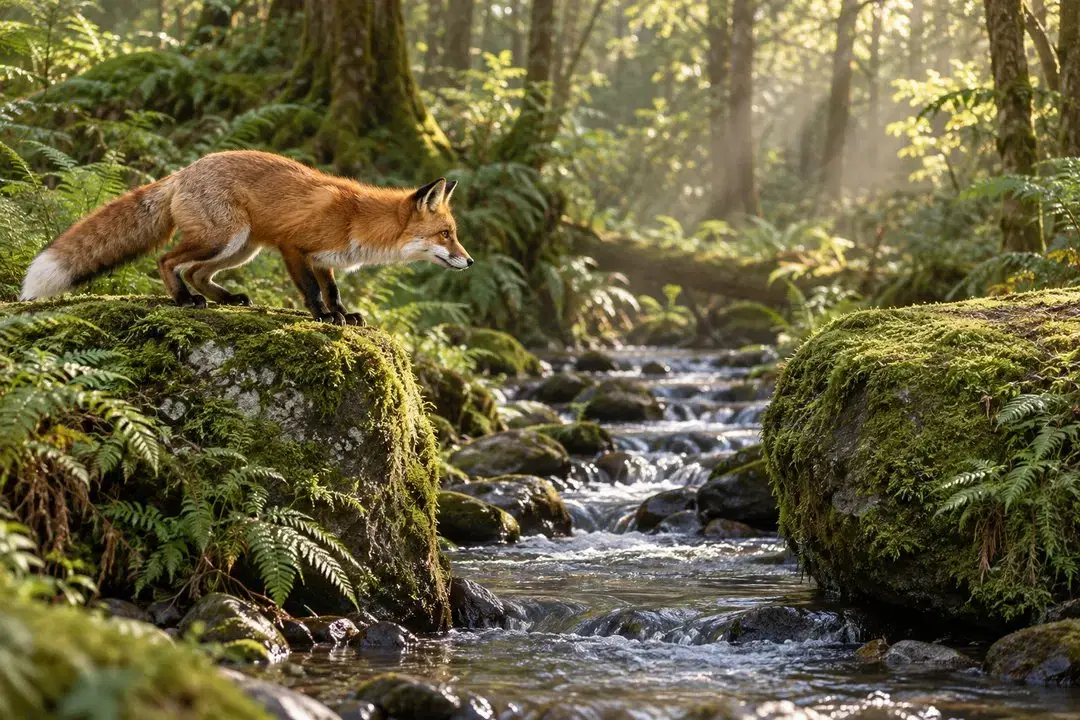
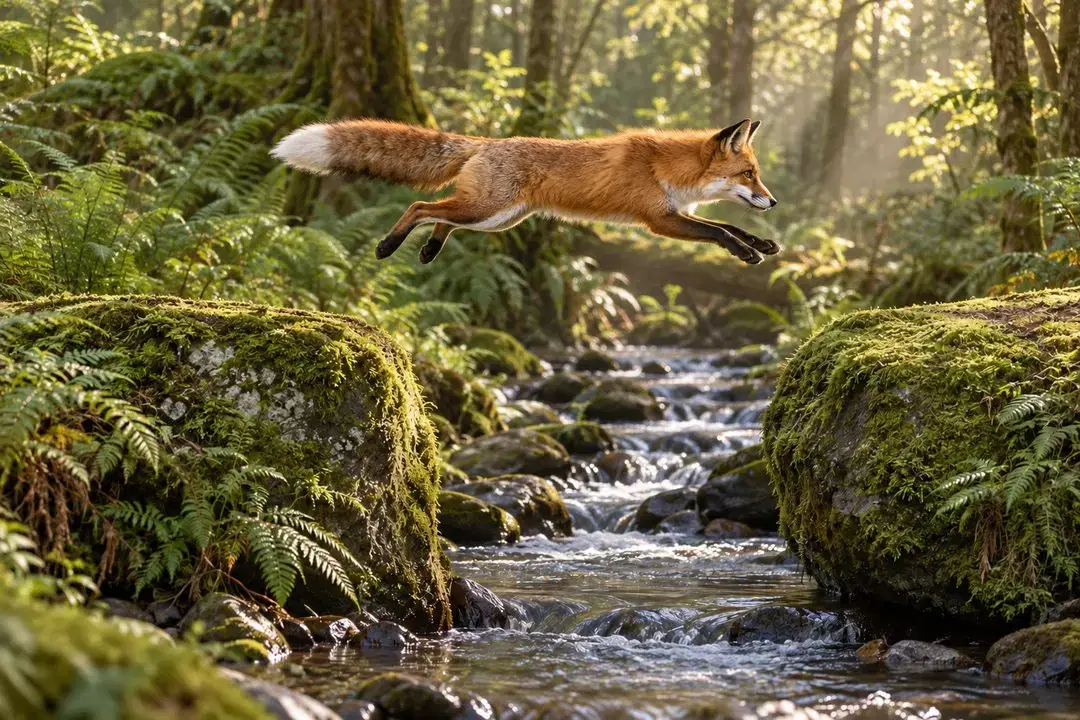
Use the uploaded fox image as the starting frame. The red fox crouches, then leaps from the left rock across the stream toward the right rock. Keep the camera fixed, the forest and morning light unchanged, and the fur markings consistent. One continuous jump, with no cuts, zooms, or extra animals.
Upload the takeoff reference first; this link only fills the prompt. Check the legs, tail, and path across the gap. If the fox changes shape, simplify the motion description before retrying.
Open with this motion promptDreamina AI vs Collart: side by side
Compare image, video, and editing workflows using product documentation. This table compares features, not output quality from a head-to-head test.
Swipe horizontally to compare both platforms.
| Dimension | Dreamina AI | Collart |
|---|---|---|
| Creative focus | AI image and video creation in a shared creative workspace. | AI image and video editors, model selection, and dedicated AI tools. |
| Image generation | Generate images from prompts or reference photos, then refine them. | Separate text-to-image and image-to-image editors with model selection. |
| Video generation | Video from text, images, or references, with controls that vary by model. | Text, image, and reference-to-video, plus start/end-frame and Motion Sync editors. |
| Image editing | Inpainting, image expansion, object removal, and retouching. | Dedicated editors for object removal, image expansion, and photo enhancement. |
| Workflow fit | Developing artwork, posters, and social visuals through generation and editing. | Choosing a focused image, video, or retouching workflow based on the input you already have. |
How to start creating in Collart
Save your starting material
Write your scene brief or choose a reference image you can use. Describe the subject, composition, and the details you want to keep.
Choose the matching editor
Choose an image or video workflow, add your prompt or reference, and select the model and format in the editor.
Review before generating again
Check the displayed credit cost, generate, and review the result. Refine one instruction at a time; for video, check the whole clip for motion and continuity.
Dreamina AI: common questions
Is Dreamina AI free to use?
Access and free-credit offers can change by account, region, and date. Check the current offer and your selected model’s credit requirement. Dreamina and Collart have separate accounts and credits.
Is Dreamina the same as Seedream or Seedance?
Dreamina is a creative platform. Seedream names an image-model family, and Seedance a video-model family. A shared model name does not mean two platforms offer the same version or settings.
Can I use Dreamina on this page?
The creation tools linked here belong to Collart. This page introduces Dreamina and compares workflows; it does not connect to your Dreamina account or run the Dreamina platform.
Can I bring my Dreamina prompt or image to Collart?
You can reuse your own prompt and images you have permission to use. Paste the prompt or upload the image in the matching Collart editor, then select your settings. Projects, subscriptions, and credits are not imported.
Make your next idea in Collart
Start with a prompt or reference and choose a workflow for your project. Review the model, settings, and credit cost in the editor before generating.