PixVerse V4.5 AI Video Generator

PixVerse V4.5 AI Video Generator

PixVerse V4.5 AI Video Generator helps create short-form and cinematic videos from text, images, and references, with character consistency, motion control, lip sync, audio tools, and 4K upscale options.

  • Character Consistency from References: Uses reference images and model tools to keep characters more consistent across clips.
  • Magic Brush Motion Control: Uses Magic Brush to guide local motion paths for objects, effects, and subjects.
  • Multi-Shot Storytelling: Builds multi-shot sequences for stronger continuity and short-form storytelling.
  • Native Audio & Lip Sync: Supports audio, sound effects, and lip-sync workflows for more complete clips.
  • Cinematic Motion & Visual Quality: Creates cinematic motion, lighting, and texture quality for social and brand videos.
  • Character Consistency from References: PixVerse can use image references and character-oriented workflows to help preserve appearance, facial details, and visual continuity across generated clips.
  • Multi-Shot Storytelling: PixVerse supports multi-shot generation for short narrative sequences, helping keep scene logic, pacing, and transitions more coherent across connected shots.
  • Cinematic Motion & Visual Quality: PixVerse combines stylized motion, camera movement, lighting, and texture quality to help creators produce polished social, anime, and brand video assets quickly.
  1. Select Model: Head to Collart Al image generator and select PixVerse from the model dropdown menu.
  2. Input Details: Describe the image you want to generate and configure your customization settings.
  3. Generate Your Image: Click 'Generate, and wait just a few seconds to download your image.
PixVerse model on Collart AI

PixVerse V4.5 AI Video Generator

PixVerse V4.5 AI Video Generator helps create short-form and cinematic videos from text, images, and references, with character consistency, motion control, lip sync, audio tools, and 4K upscale options.

Experience Now

What Makes PixVerse AI Video Different

01 / Character • Consistency

Character Consistency from References

Uses reference images and model tools to keep characters more consistent across clips.

02 / Local • Precise Control

Magic Brush Motion Control

Uses Magic Brush to guide local motion paths for objects, effects, and subjects.

03 / Continuous • Storytelling

Multi-Shot Storytelling

Builds multi-shot sequences for stronger continuity and short-form storytelling.

04 / Immersive • Audio

Native Audio & Lip Sync

Supports audio, sound effects, and lip-sync workflows for more complete clips.

05 / Efficient • Cinematic

Cinematic Motion & Visual Quality

Creates cinematic motion, lighting, and texture quality for social and brand videos.

Character Consistency from References

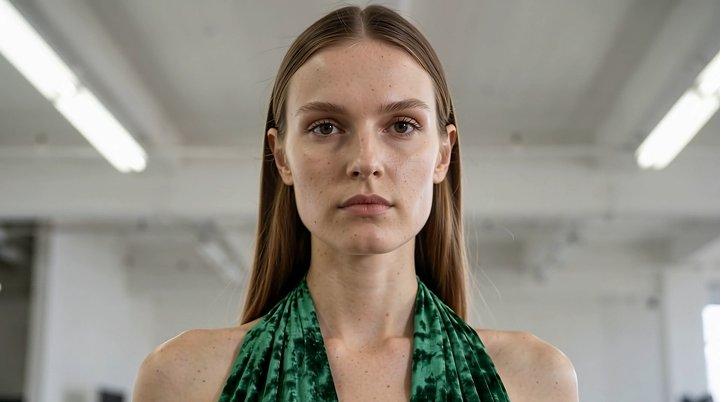
PixVerse can use image references and character-oriented workflows to help preserve appearance, facial details, and visual continuity across generated clips.

Reference Image
Prompt

The woman begins a slow, deliberate walk forward across the concrete floor. The emerald velvet gown trails behind her, catching the overhead fluorescent light as the fabric ripples and shifts. She lifts her chin slightly, her gaze fixed ahead with quiet intensity. The camera pulls back on a dolly, maintaining distance as she advances. The train of the dress sweeps across the polished concrete, the deep green velvet folding and unfolding in liquid motion. In the background, the crew is still — watching. She pauses, turns her head to the right in a slow quarter-profile, then looks directly into the lens.

Output Video

Multi-Shot Storytelling

PixVerse supports multi-shot generation for short narrative sequences, helping keep scene logic, pacing, and transitions more coherent across connected shots.

Prompt

A tribal warrior character with asymmetrical armor crafted from scavenged materials including reptile scales with iridescent properties, bone fragments secured with leather bindings, war paint applied with finger-stroke detail and partial smudging, scarification patterns with height map details for tactile realism, and ceremonial wooden mask featuring animal motifs with feather and fur attachments that respond to movement physics.

Output Video

Cinematic Motion & Visual Quality

PixVerse combines stylized motion, camera movement, lighting, and texture quality to help creators produce polished social, anime, and brand video assets quickly.

Prompt

Hyper-dynamic fast-paced action sports shot, high shutter speed, crisp motion, aggressive camera movement, Downhill skateboarding: French woman in full leathers tucks through a hairpin in the Pyrenees, helicopter wide shot pulling back to reveal the entire mountain road, crystal clear daylight, whip pans, quick rack focus, kinetic energy, punchy contrast, raw documentary realism, no sparks, no lens flares, no VFX, no particles, photorealistic

Output Video

Model Performance

Compared with earlier PixVerse workflows, newer PixVerse models emphasize stronger audio, lip-sync, character consistency, multi-shot storytelling, and faster short-video production.

Dimension
PixVerse V4.5
PixVerse V5.5
Core Positioning
Single-shot material generation
Full narrative / Short film creation
Audio Processing
Requires manual post-dubbing
Native Audio-Visual Sync (Lip-sync + Sound Effects)
Shot Composition
Primarily single-shot clips
Automatic multi-shot sequences
Generation Efficiency
Standard speed
Significant boost (Rapid iteration)
User Persona
Professional creators / VFX artists
General users / Short video directors

How To Use PixVerse on Collart

Step 1

Select Model

Head to Collart Al image generator and select PixVerse from the model dropdown menu.

Step 2

Input Details

Describe the image you want to generate and configure your customization settings.

Step 3

Generate Your Image

Click 'Generate, and wait just a few seconds to download your image.

Frequently Asked Questions

Turn Your Ideas into Stunning Visuals

Experience Now