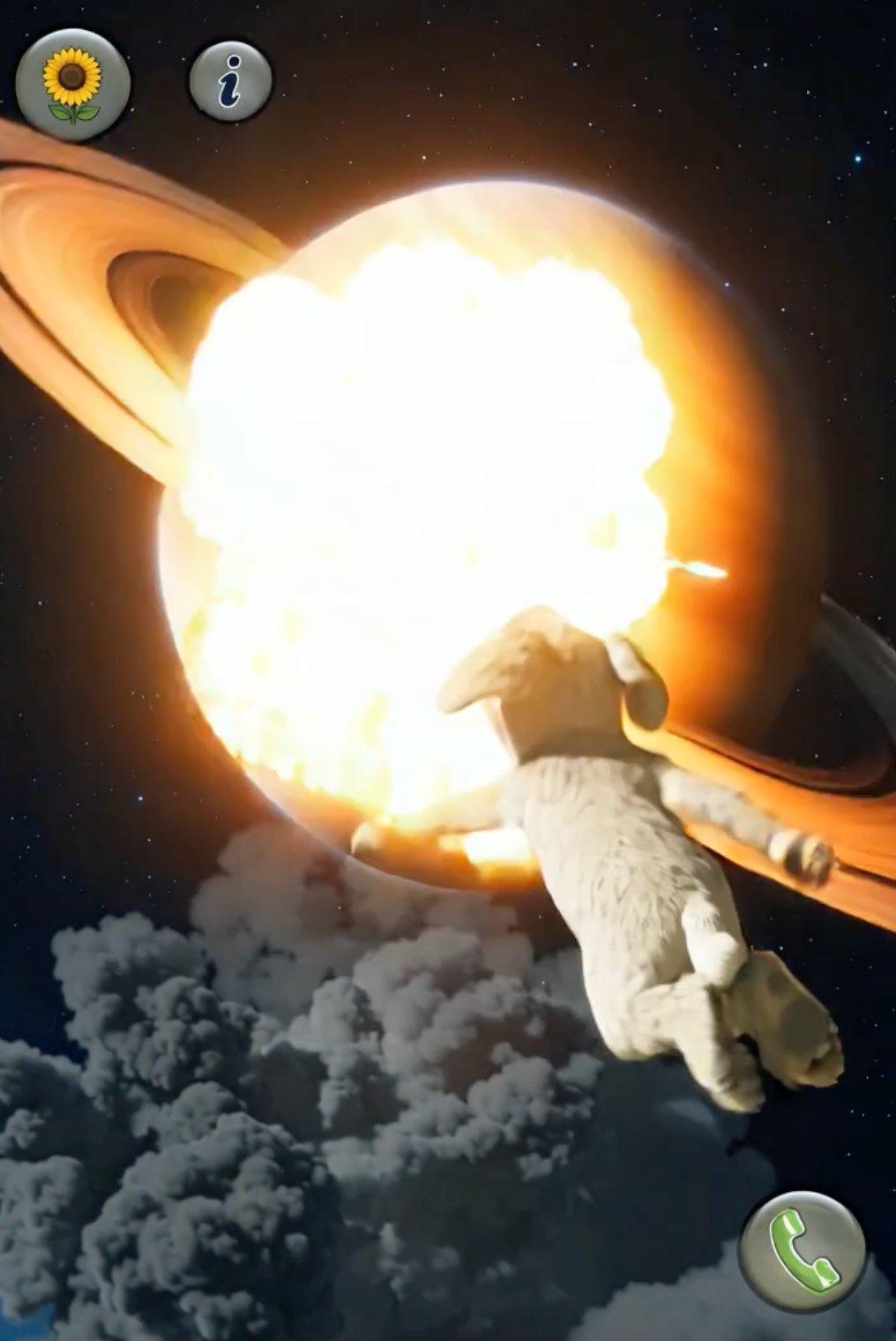
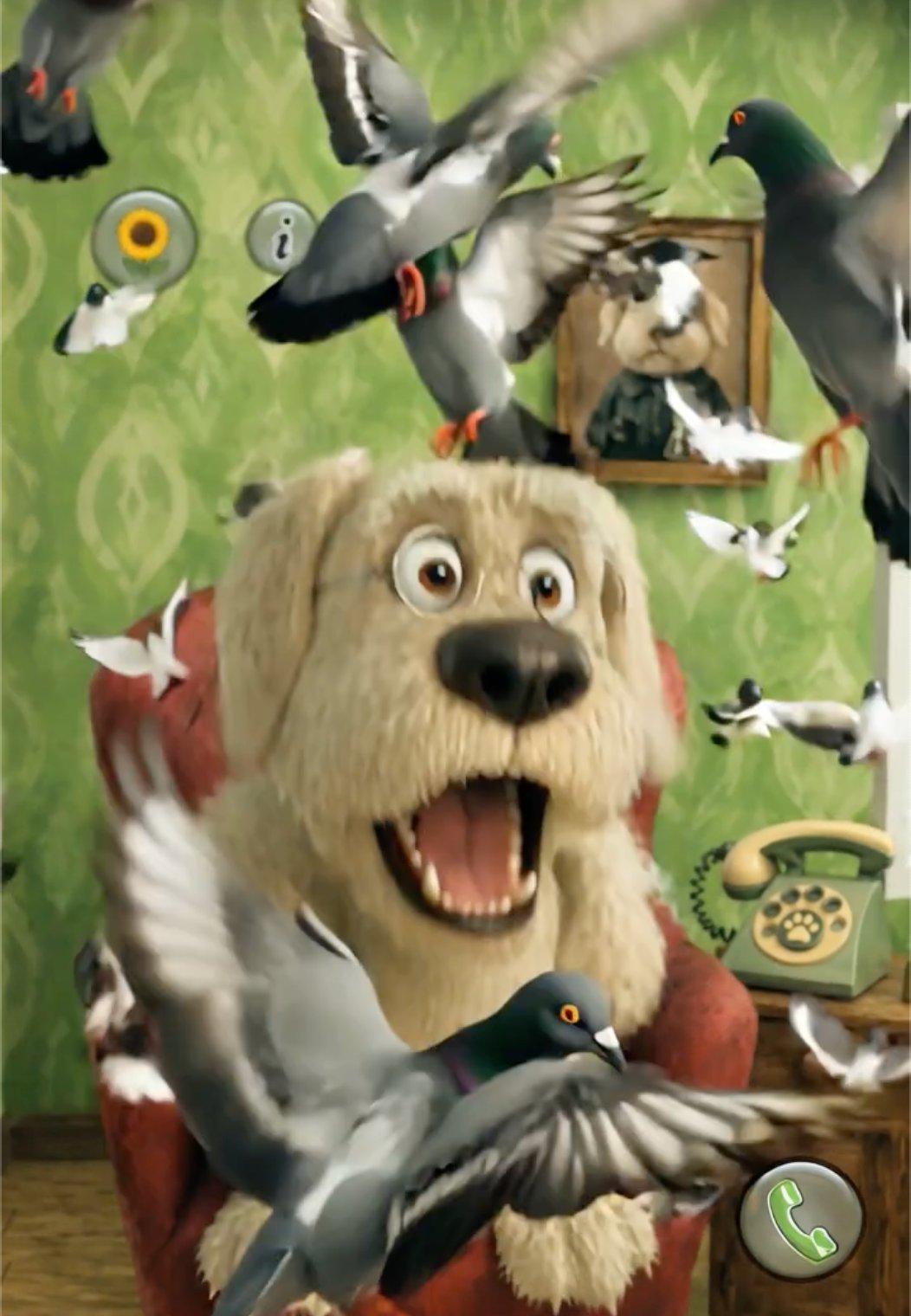
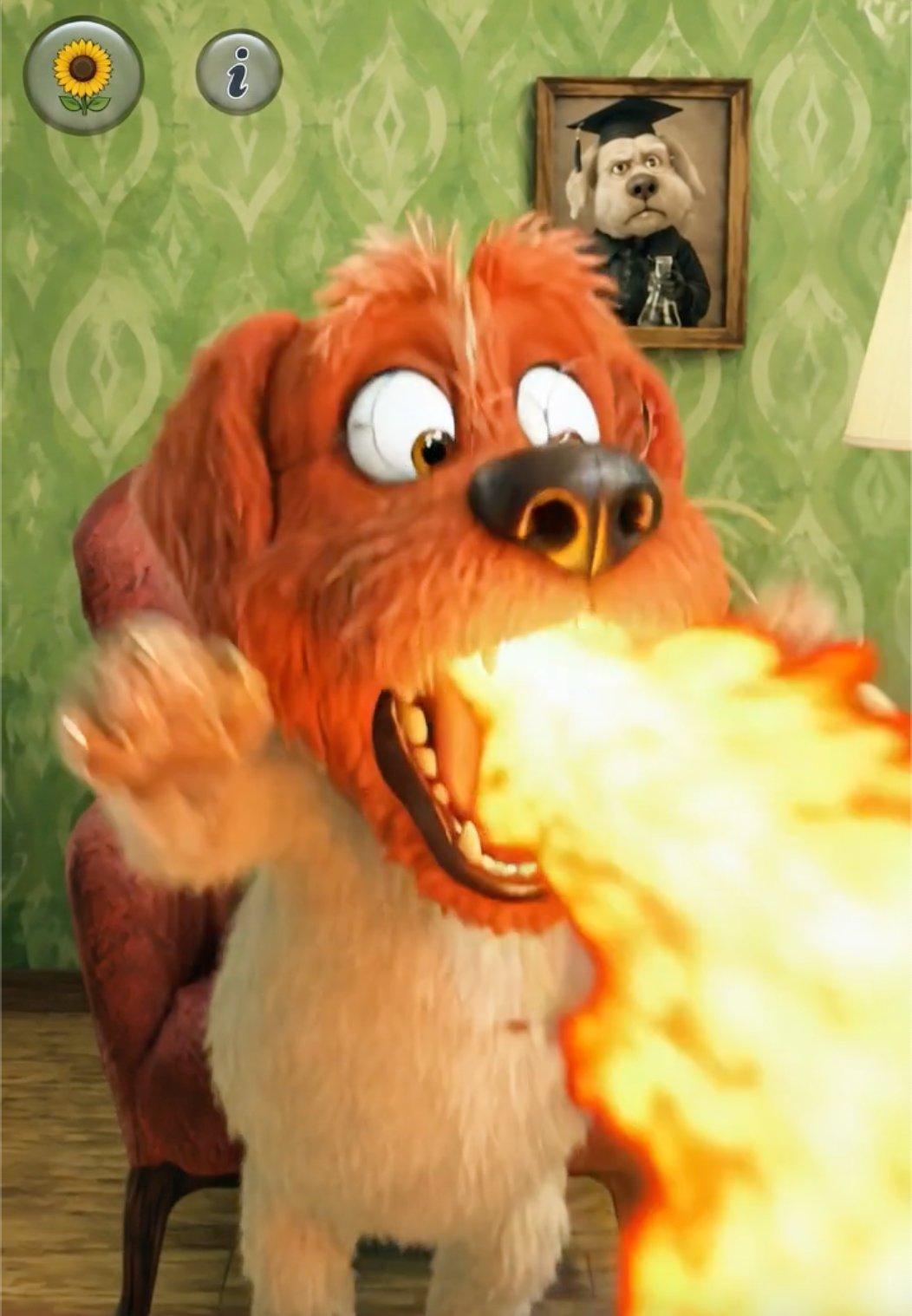
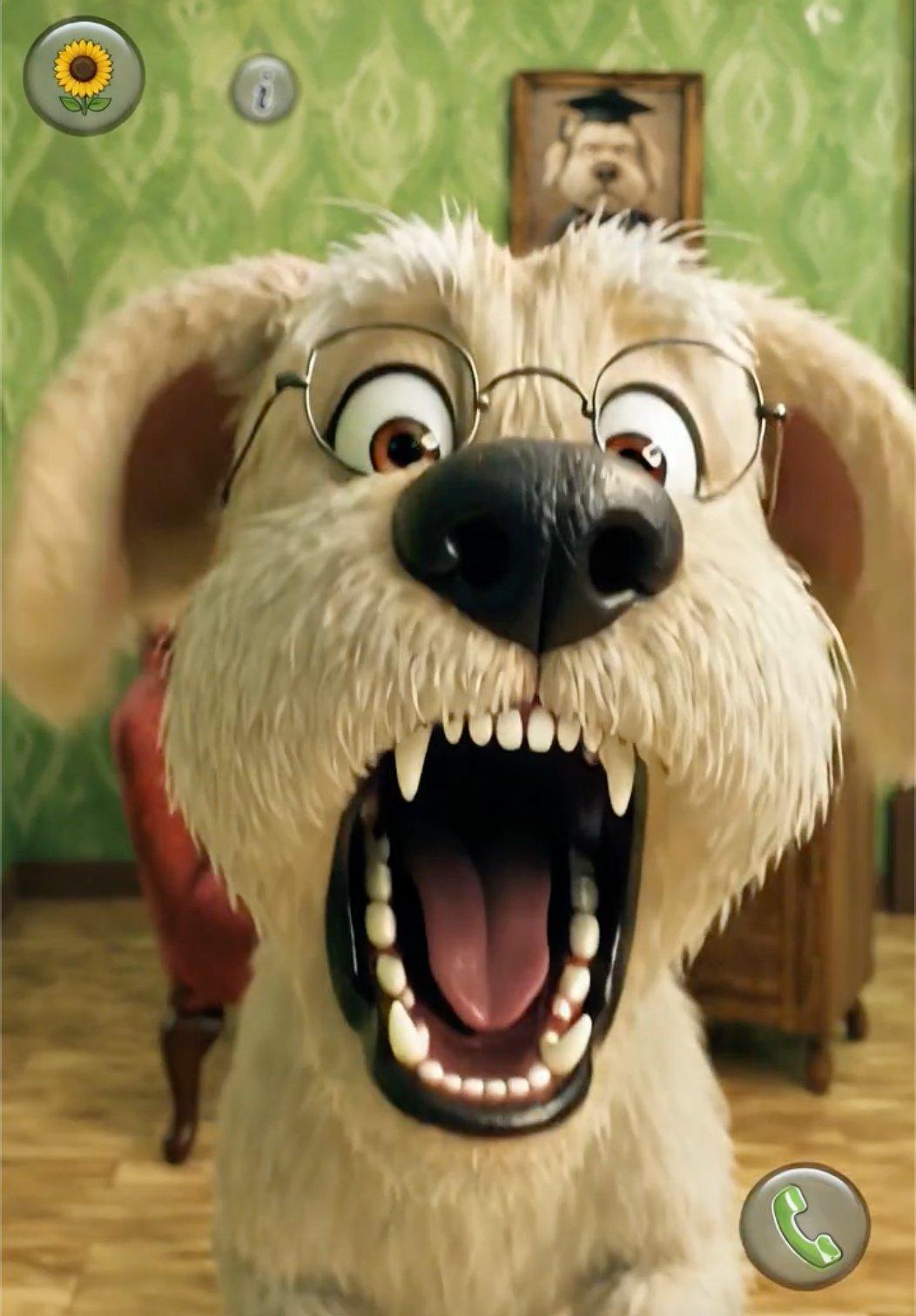
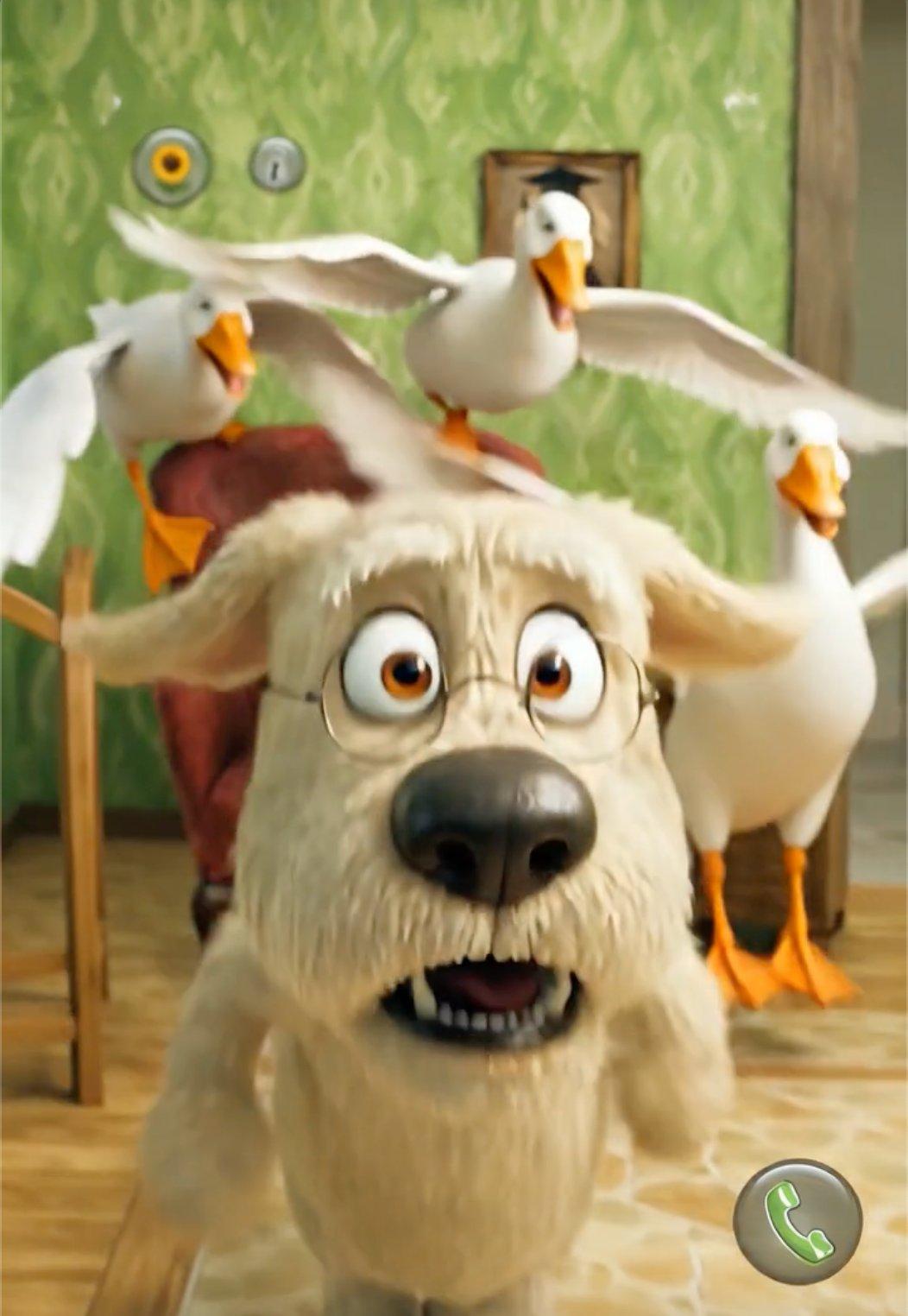
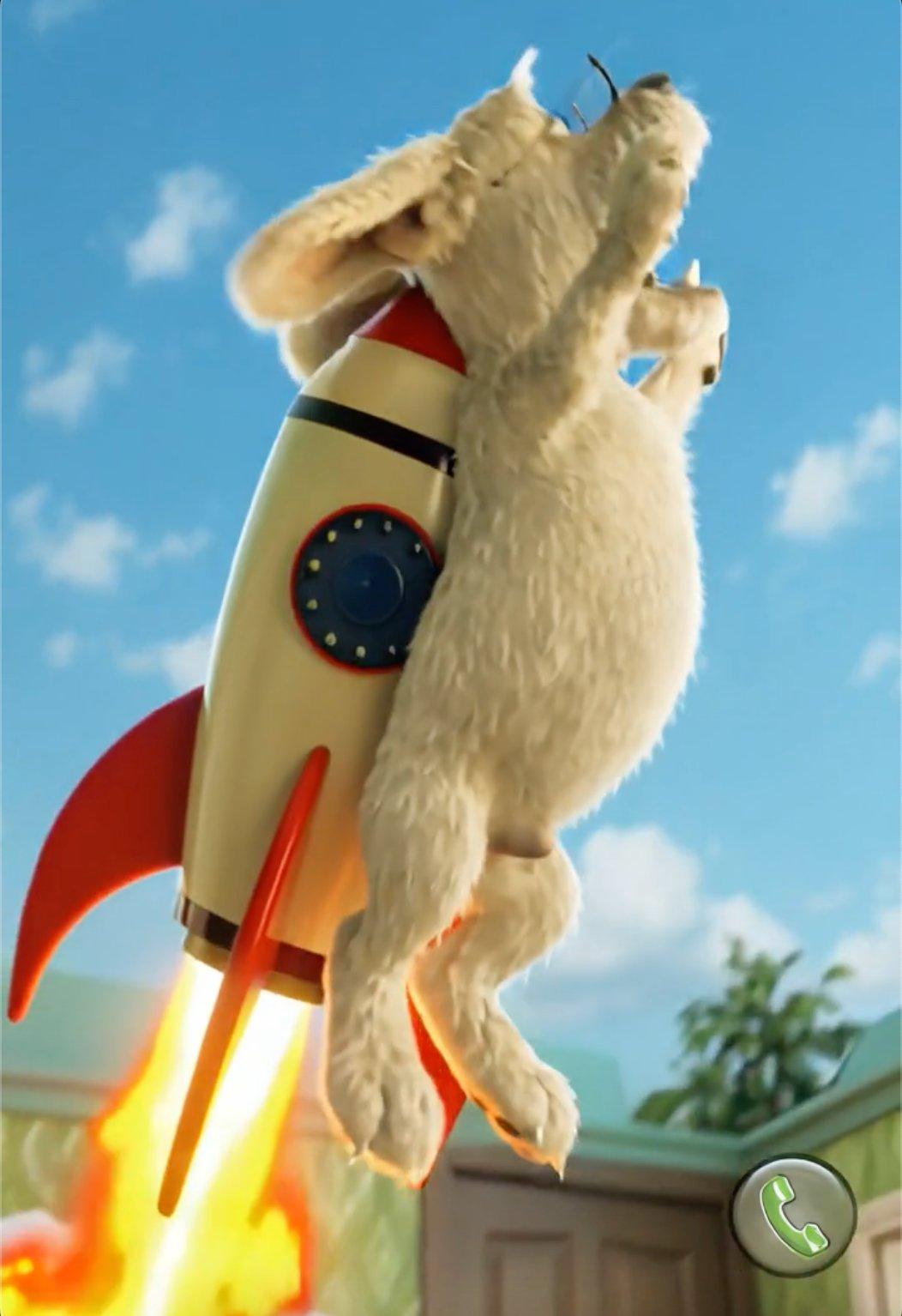
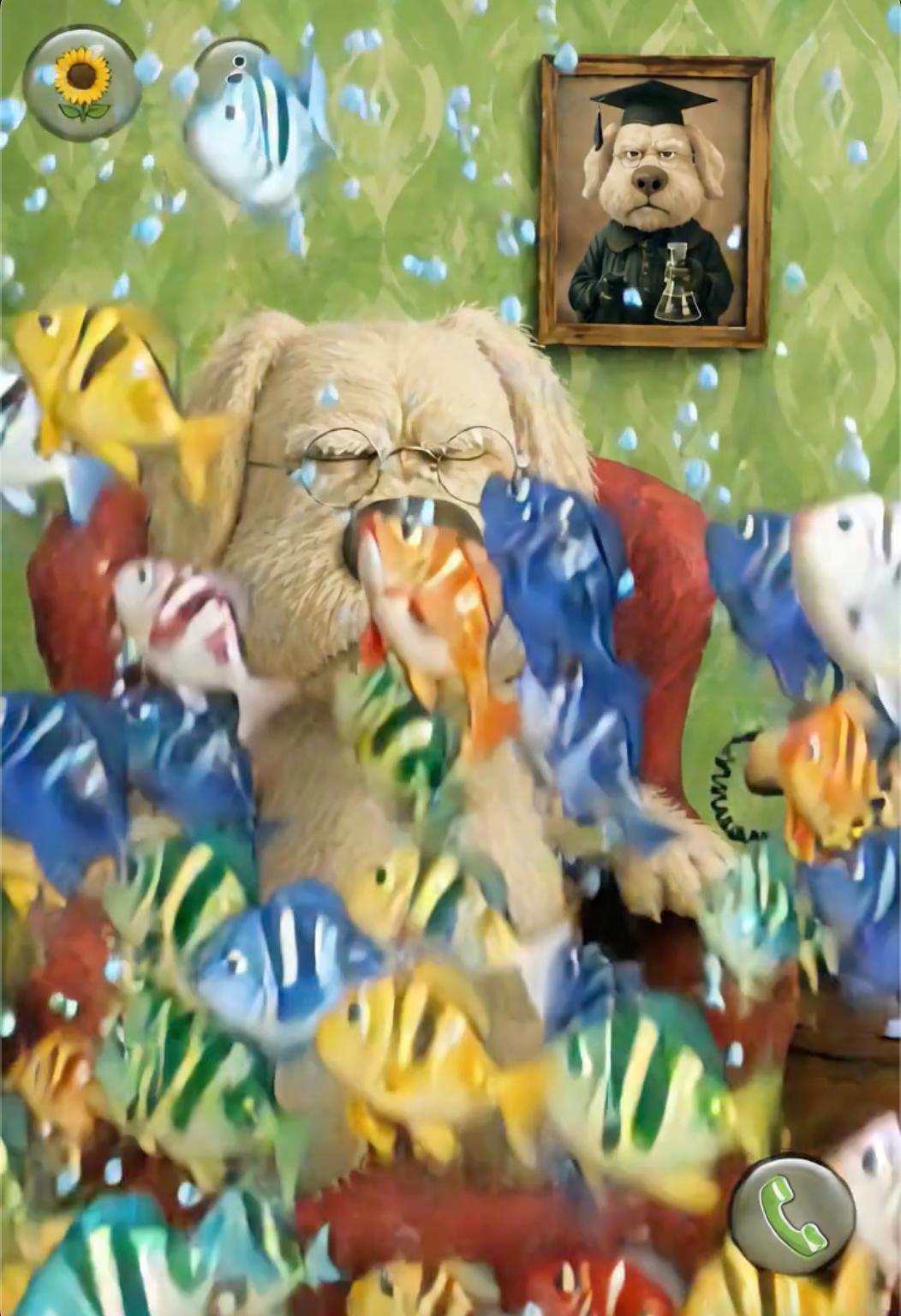
Start with a clear character image. Choose one easy-to-read subject with a visible face and body, plus enough space around the character for movement. A simple background gives the model a cleaner starting point. Use only images and characters you own or have permission to use.
Talking Ben AI video generator
Create Talking Ben AI videos
Turn one character image into a funny, surreal dog video with expressive motion and unexpected transformations.
Upload one image
Describe the motion
Generate a vertical video
Choose a Talking Dog template
Preview an effect, then open it in Collart with the motion and settings ready to customize.
What is a Talking Ben AI video generator?
A Talking Ben AI video generator turns a still character image into a short animated scene. In Collart, you upload one image, describe a single motion, and let Image to Video create expressive movement, reactions, or surreal transformations without building a timeline by hand.
Describe one motion at a time. Write a direct prompt that names the action first, then adds camera or scene behavior. For example, ask the dog to run toward the camera, stretch toward the ceiling, or react while the room bends. One focused action is easier to control than several unrelated events.
Generate, review, and refine. Collart creates a short video from the image and prompt. Check the character motion, background stability, and framing, then adjust one detail before generating again. Vertical framing works well for short-form video, while keeping each version focused makes it easier to compare results.
The finished clip can be downloaded and used wherever you have the necessary rights. Review every result before publishing, especially when a character, soundtrack, or source image belongs to someone else.
Make your own Talking Dog video
Choose a template, add your own character image, then adjust the preset before generating your video.
Choose a template
Preview the effects above and select the motion you want to start with.
Add your image and customize
Replace the sample image, then review the preset prompt and available video settings.
Generate and refine
Create the clip, check the motion and framing, then adjust the setup or download your result.
Talking Ben AI video FAQ
How do I use a Talking Dog video template?
Preview an effect on this page, select Use this template, and Collart will open Image to Video with the matching motion and settings ready. Add an image you are allowed to use, make any changes, and generate.
What does a Talking Dog template include?
A template can preload a sample image, motion prompt, aspect ratio, model, duration, resolution, and other compatible settings. The exact options depend on the selected template and current model.
Can I customize a template before generating?
Yes. You can replace the image, edit the prompt, and change the settings available for the selected model. Generated results can vary, so review each clip and refine one detail at a time.
What image works best for a Talking Dog video?
Use a clear image with one main character, a visible face and body, and enough space around the subject for movement. A simple background usually makes the motion easier to read.
What can I create with Collart?
Create short character videos with exaggerated motion, surreal transformations, and vertical compositions using Collart Image to Video.
Can I use any Talking Ben image?
Only use images, characters, audio, and videos that you own or are allowed to use. Check the rights for every asset before publishing.
Collart is not affiliated with or endorsed by Outfit7. Talking Ben and related trademarks belong to their respective owners.