Wan 2.7 AI Video Generator

Wan 2.7 AI Video Generator

Wan AI Video 2.7 turns text, images, and reference clips into cinematic videos with smooth motion, first-and-last-frame control, video continuation, 1080p output, and guided creative workflows.

  • Text-to-Video Creation: Generate cinematic clips directly from scene, motion, and camera prompts.
  • Image-to-Video Animation: Turn a still image into a moving clip with natural motion and continuity.
  • First & Last Frame Control: Lock opening and ending frames to guide transitions and transformations.
  • Video Continuation: Extend an existing clip while keeping motion, style, and direction aligned.
  • 1080p Motion Quality: Create HD video with smoother motion, cleaner details, and stable pacing.
  • Social Creators: Create short videos, reels, story posts, and scroll-stopping visual clips.
  • Text-to-Video Creation: Wan AI Video 2.7 helps creators turn written ideas into short cinematic clips. Describe the subject, action, camera movement, lighting, and mood, then generate a video that feels directed rather than randomly assembled.Powered by Wan AI Video 2.7
  • Image-to-Video Animation: Upload a still image and describe how it should move. Wan AI Video 2.7 can animate portraits, products, characters, environments, and concept art while preserving the original visual direction.
  • First & End Frame Control: Use first-and-last-frame control when the start and end states matter. It is useful for product reveals, character transformations, match cuts, before-and-after shots, and storyboard-based video production.
  • Video Continuation: Wan AI Video 2.7 can continue an existing clip, helping creators extend a scene without starting over. This is useful for longer storytelling, social clips, ad variations, and sequential content.
  1. Select Model: Head to Collart AI video generator and select Wan AI Video from the model dropdown menu.
  2. Input Details: Describe the scene, motion, camera, and references you want to use for your video.
  3. Generate Your Video: Click Generate, preview the result, then refine or download your final video.
Powered by Wan AI Video 2.7

Wan 2.7 AI Video Generator

Wan AI Video 2.7 turns text, images, and reference clips into cinematic videos with smooth motion, first-and-last-frame control, video continuation, 1080p output, and guided creative workflows.

Experience Now

What Makes Wan AI Video Different

01 / Text to Video

Text-to-Video Creation

Generate cinematic clips directly from scene, motion, and camera prompts.

02 / Image to Video

Image-to-Video Animation

Turn a still image into a moving clip with natural motion and continuity.

03 / Frame Control

First & Last Frame Control

Lock opening and ending frames to guide transitions and transformations.

04 / Continuation

Video Continuation

Extend an existing clip while keeping motion, style, and direction aligned.

05 / HD Motion

1080p Motion Quality

Create HD video with smoother motion, cleaner details, and stable pacing.

Text-to-Video Creation

Wan AI Video 2.7 helps creators turn written ideas into short cinematic clips. Describe the subject, action, camera movement, lighting, and mood, then generate a video that feels directed rather than randomly assembled.Powered by Wan AI Video 2.7

Prompt

The white dragon warrior stands still, eyes full of determination and strength. The camera slowly moves closer or circles around the warrior, highlighting the powerful presence and heroic spirit of the character.

Output Video
Prompt

Humorous but premium mini-trailer: a tiny fox 3D director proves "multi-scene" by calling simple commands that instantly change the set. Extreme photoreal 4K, cinematic lighting, subtle film grain, smooth camera. No subtitles, no UI, no watermark. Shot 1 [0-3s] Macro close-up on the fox snapping a clapboard labeled "fal". the fox says : "Action." Shot 2 [3-6s] Hard cut: Wild West street at sunset. Wide shot, dust in the air. The Fox (in frame) points forward: "Make it wide." Shot 3 [6-10s] Hard cut: jungle river. The fox stands on a small boat. The camera pushes forward through vines and mist. Fox saying: "Now… adventure." Shot 4 [10-15s] Hard cut: space station window. Slow orbit around the fox with stars outside. Fox nods: "Done. Next movie."

Output Video

Image-to-Video Animation

Upload a still image and describe how it should move. Wan AI Video 2.7 can animate portraits, products, characters, environments, and concept art while preserving the original visual direction.

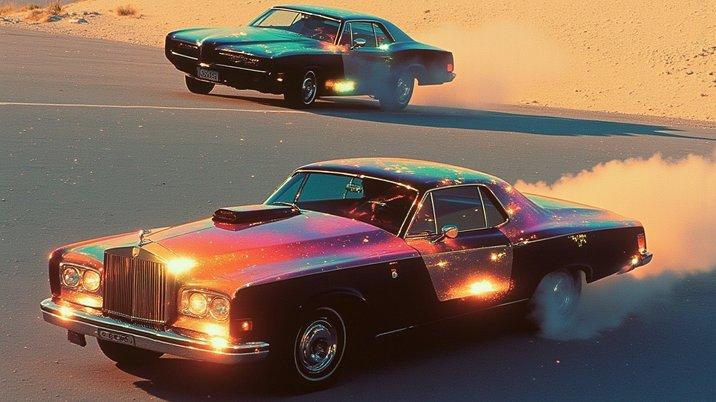
Reference Image
Prompt

Cars racing in slow motion

Output Video

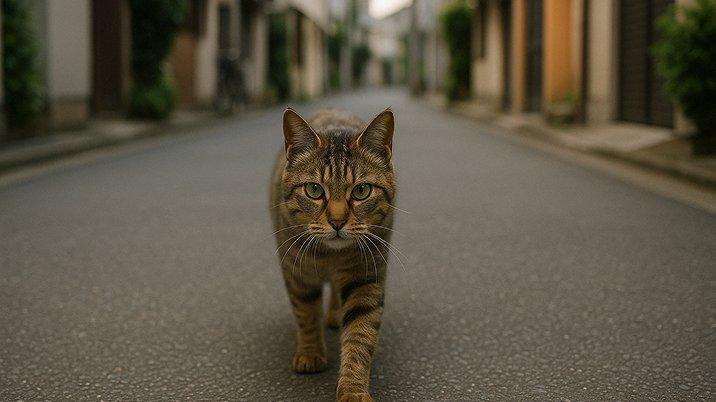
First & End Frame Control

Use first-and-last-frame control when the start and end states matter. It is useful for product reveals, character transformations, match cuts, before-and-after shots, and storyboard-based video production.

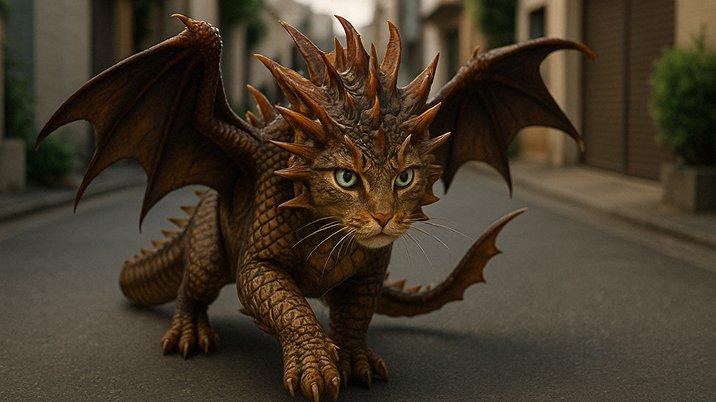
First Frame
End Frame
Output Video

Video Continuation

Video Continuation

Wan AI Video 2.7 can continue an existing clip, helping creators extend a scene without starting over. This is useful for longer storytelling, social clips, ad variations, and sequential content.

Prompt

Shot 1 [0-4s] Continue from first frame. The creator presses "PRINT". The machine clunks like a spaceship. Creator whispers: "Okay… I'm pressing enter." Shot 2 [4-8s] Smash cut: the printed paper flies into the air and unfolds into a full desert canyon scene around the desk, like reality is being unrolled. Creator says: "Wait—my prompt has physics?" Shot 3 [8-12s] Hard cut: the paper tears and reveals a tropical jungle behind it, perfectly lit, cinematic sun. Creator laughs: "This is exactly why we do AI." Shot 4 [12-15s] Hard cut back to studio. The printer prints a final line (not shown clearly). Creator looks to camera: "Multi-scene. Single prompt."

Output Video

Comparison

Wan AI Video 2.7 vs. Seedance 2.0 vs. Google Veo

Dimension
Wan AI Video 2.7
Seedance 2.0
Google Veo
Model Focus
Controllable video creation from text, images, references, and existing clips.
Multimodal video generation for dynamic motion and creator-style clips.
Cinematic video generation with strong realism, prompt adherence, and native audio.
Input Workflow
Supports text-to-video, image-to-video, first/last frames, references, and continuation.
Combines text, images, video, and audio references for richer generation control.
Supports text-to-video and image-to-video, depending on product and API mode.
Motion Control
Strong for planned motion, transitions, and guided start-to-end video structure.
Strong dynamic motion, camera movement, and multi-shot visual rhythm.
Strong realism, natural lighting, physics, and cinematic camera behavior.
Scene Continuity
Extends clips and keeps visual direction aligned across reference-based workflows.
Designed for multi-shot storytelling and character consistency across scenes.
Strong short-scene coherence with polished cinematic atmosphere.
Best Use Case
Storyboards, product motion, reference-led videos, and controlled creative iteration.
Social clips, creator videos, dynamic scenes, and fast multimodal production.
High-fidelity cinematic clips, ads, narrative moments, and realistic video concepts.

Wan AI Video Target Audience & Creative Applications

Wan AI Video 2.7 is useful for creators, brands, and production teams that need controllable video generation from text, images, references, and existing clips.

01

Social Creators

Create short videos, reels, story posts, and scroll-stopping visual clips.

ReelsShortsStorytellingCamera Motion

02

Marketing Teams

Generate product promos, campaign videos, ad concepts, and launch teasers.

PromosAdsCampaignsTeasers

03

E-commerce Brands

Animate product images into lifestyle videos and selling scenes.

ProductLifestyleSellingScenes

04

Filmmakers

Explore shots, transitions, storyboard motion, and cinematic scene ideas.

ShotsTransitions

05

Game Creators

Create character motion, environment previews, trailers, and concept clips.

CharactersTrailersWorldsConcepts

How To Use Wan AI Video on Collart

Step 1

Select Model

Head to Collart AI video generator and select Wan AI Video from the model dropdown menu.

Step 2

Input Details

Describe the scene, motion, camera, and references you want to use for your video.

Step 3

Generate Your Video

Click Generate, preview the result, then refine or download your final video.

Frequently Asked Questions

Create Cinematic Videos with Wan AI

Experience Now