YOUR PHOTO. YOUR STAGE.

AI Rap Video Generator

Step into the spotlight.

Turn your photos into a short performance with the AI Rap Video Generator. Choose a studio duet, a solo party scene, or a pet with attitude. Replace the character photos and give your next post a face, a rhythm, and a little stage presence.

Photo references · Performance templates · Short video clips

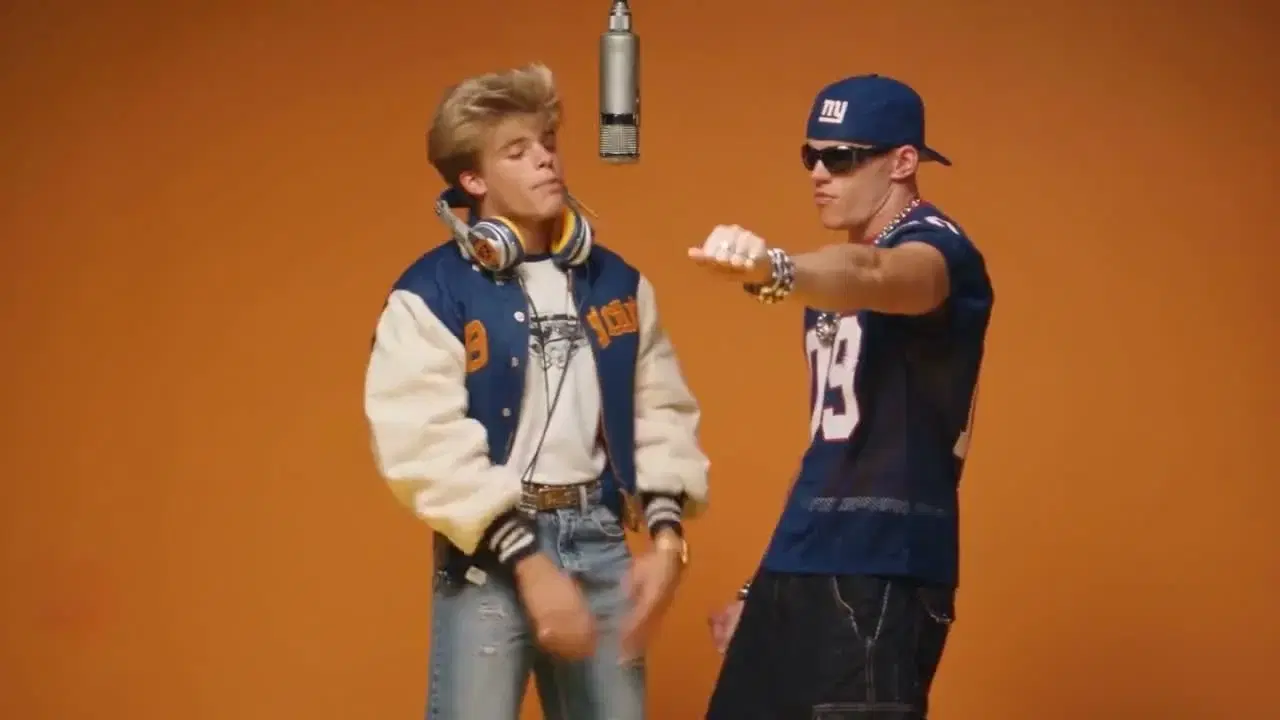
Two performers. One microphone. Your moment.hotel lobby

FIND YOUR FLOW

Pick the performance before the photo

Compare a studio duet, a solo party performance, and a playful pet clip. Watch the movement and framing, then choose the scene that fits your photos.

hotel lobby

The studio duet

Choose the hotel lobby template for a two-person performance. Its orange set, hanging microphone, and shared frame put the focus on faces and hand gestures. Replace both character references to put yourself and a friend in the scene, while keeping the same studio setup.

Use a separate photo for each performer so each role has a clear visual reference. A crowded group photo makes it harder to tell which person belongs in each role.
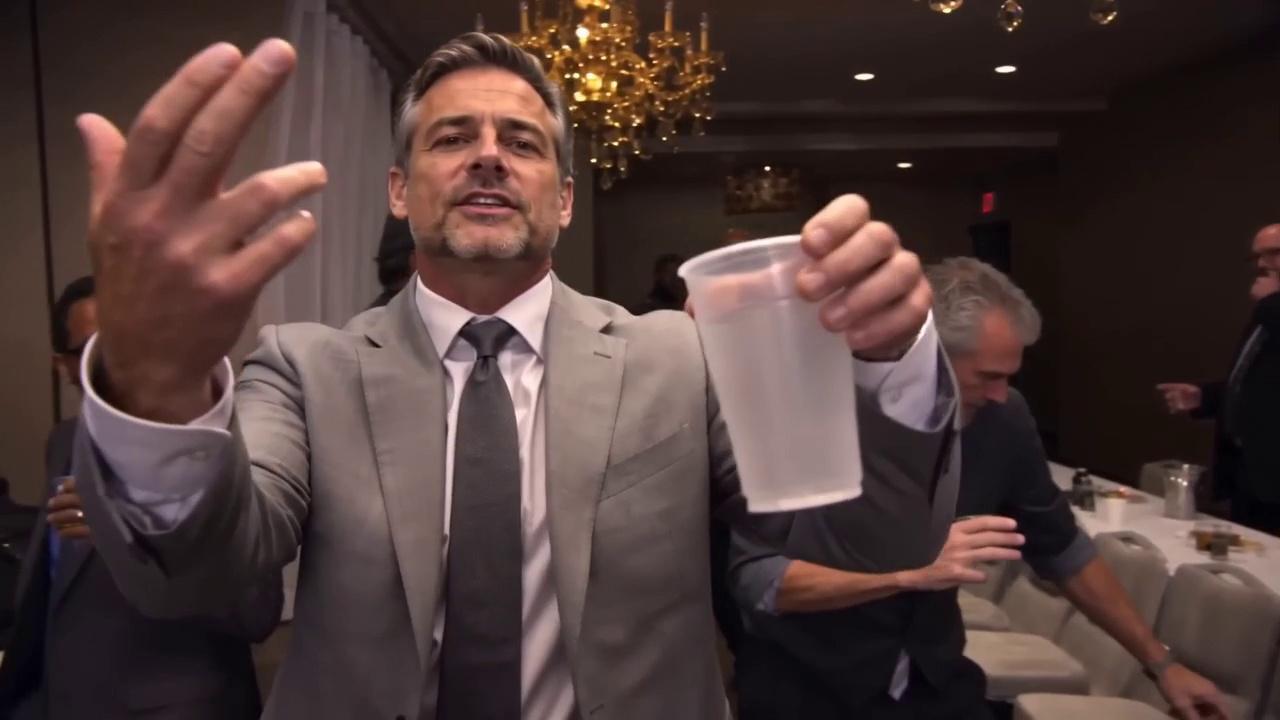
Burning Bridges

The solo party performance

Put yourself in the Burning Bridges scene: one performer, a drink in hand, and a rap directed at the camera. Replace the character portrait and keep the party setting and performance references for your first attempt. Review the face, hand holding the drink, and mouth movement before sharing.

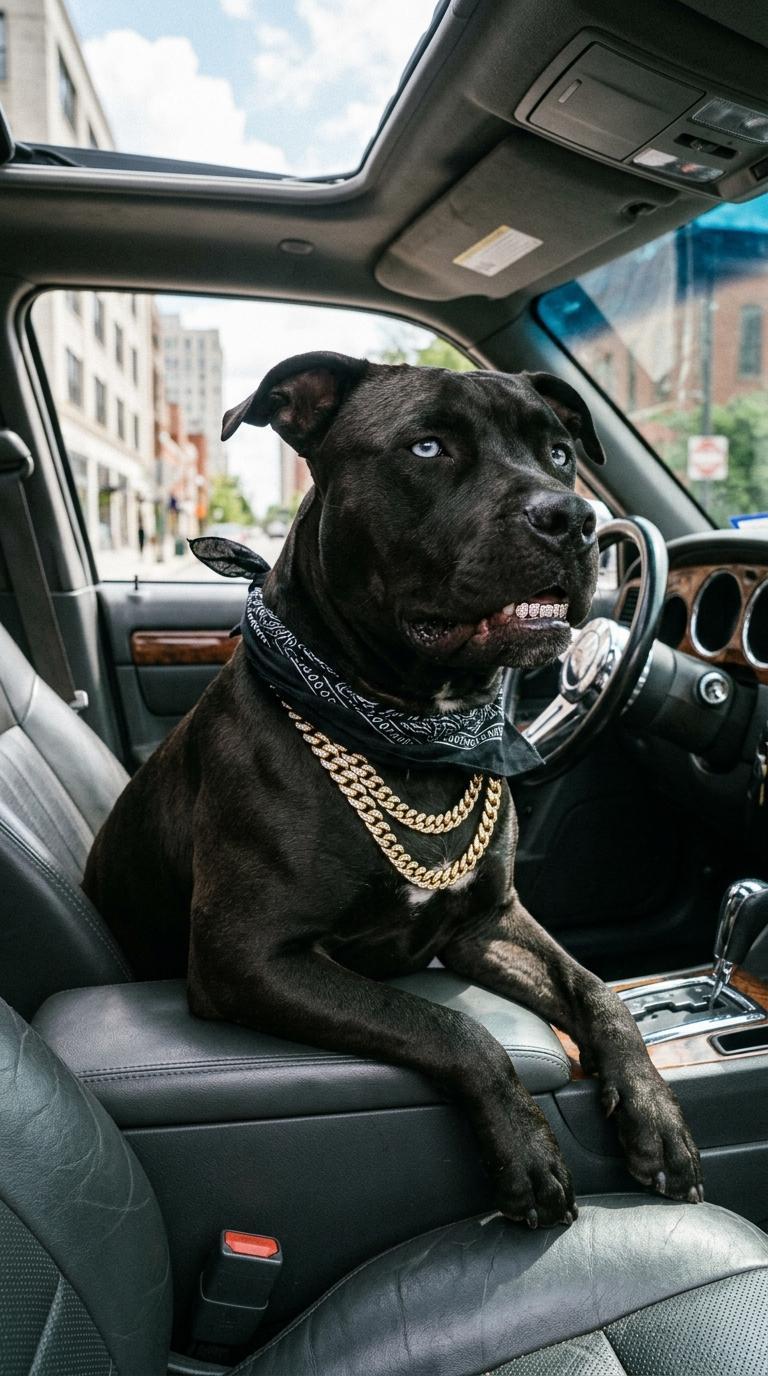
Hip-hop Dog

The unexpected frontman

Try the Hip-hop Dog template when the joke is the performer. It pairs a pet portrait with the template's audio reference. A clear muzzle, visible eyes, and a simple background make the expression easier to read.

This setup suits a playful reaction clip. Start with one pet and review the mouth, jaw, and head movement before sharing.

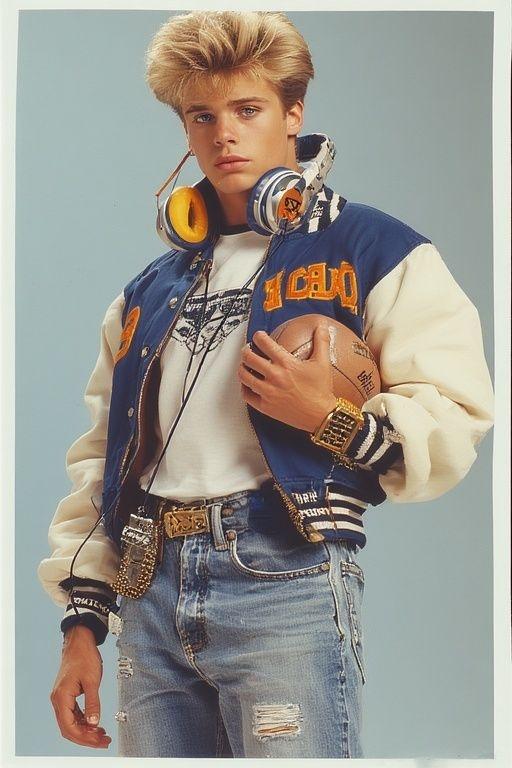
First character reference supplied with the studio duet template.
Performer A
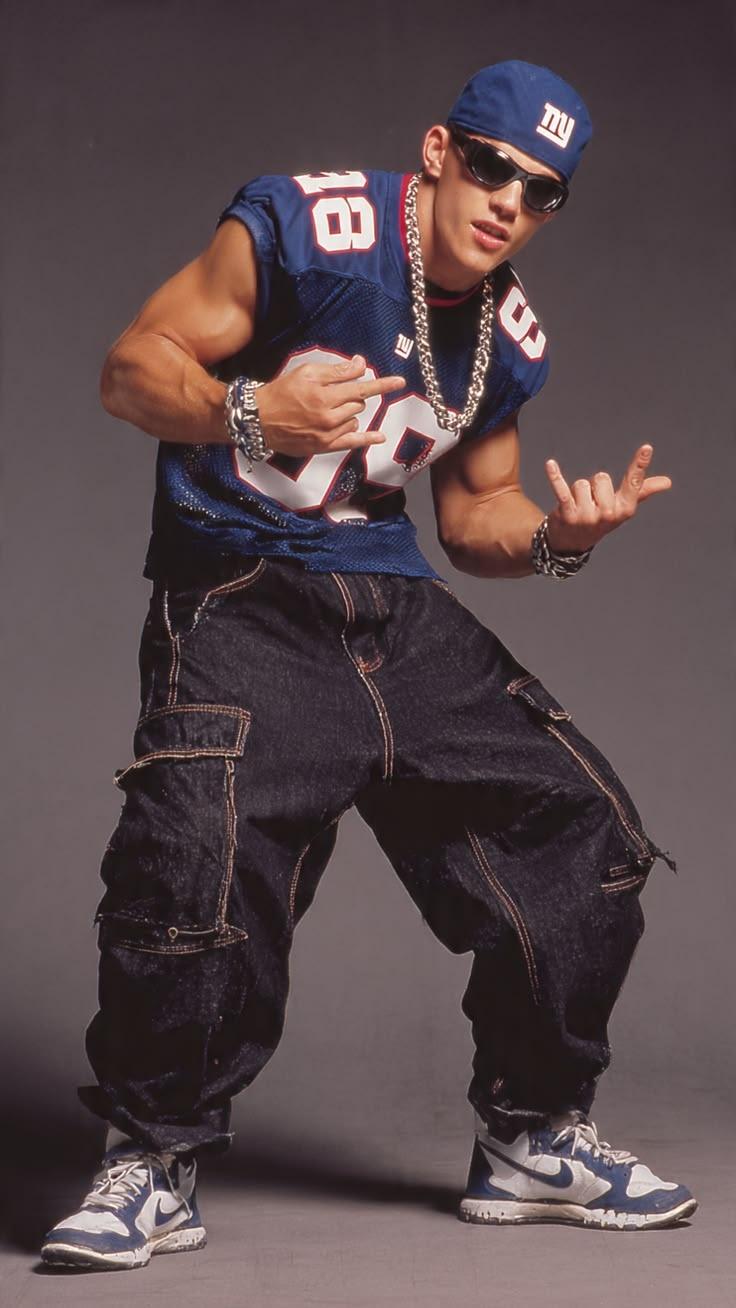
Second character reference supplied with the studio duet template.
Performer B

CAST YOUR DUET

A better performance starts with clear photos

Choose photos with clearly visible faces. For the studio duet, use one person per reference, with the head and upper body in frame. Keep the clothing you want in the result visible. A front view or slight three-quarter angle is a useful starting point.

  • Keep hands away from the mouth. Visible lips and facial features give the model a clearer starting image.
  • Choose similar framing for both people. Leave space around their heads and shoulders instead of cropping too tightly.
  • Use a sharp original photo. Blur and heavy filters can hide details that are difficult to recreate in motion.

FROM PHOTO TO PERFORMANCE

How to use the AI Rap Video Generator

  1. Choose your stage

    Open a template from the examples above. Preview the scene, then check the model, duration, and format in the editor. The demo shows the creative direction; your selected settings determine the new clip.

  2. Replace the references

    Replace the supplied character images with your own. Keep the video and audio references for your first attempt. For a duet, check that both people occupy the intended image slots before you generate. Match each image to the performer label in the prompt.

  3. Generate, watch, refine

    Review the credit amount before you generate. Play the finished clip with sound, then check faces, gestures, and timing. Change one input at a time if you try again, so you can tell what improved. Save the take you prefer before making further changes.

DIRECT THE DETAILS

Keep the rhythm. Make the scene yours.

Give each clip one clear idea. Begin with the template's staging and swap the cast first. Once you like the result, adjust a small detail such as the clothing reference or camera description. Avoid asking for several locations, fast cuts, and new performers in one short take.

A simple direction to build on

Two performers share a hanging microphone in a clean orange studio. Keep each person's face and outfit consistent. Use natural hand gestures and a steady medium shot. Follow the supplied performance reference.

Use this direction as a starting point for a focused studio scene. Keep the existing image and video reference labels in your prompt so the editor can still distinguish the two performers and the reference for their movement.

Three checks before you share

Watch your finished clip once for the overall performance and again for small mistakes. These three checks help you choose a stronger take without changing everything at once. Pause on any awkward moment to see whether the issue comes from the face, the gesture, or the framing.

  • Face and outfit

    Check both performers at the beginning and end. If a face changes, try a clearer reference photo. Make sure hair, clothes, and accessories stay recognizable during movement, especially when someone turns their head or crosses in front of the other person.

  • Hands and microphone

    Watch gestures near the face and microphone. If hands overlap or flicker, simplify the movement in your prompt. A small, clear gesture can work better than constant motion. Check that the microphone stays in place and does not blend into a face or hand.

  • Sound and framing

    Listen for timing and preview your final crop. Exact lip sync is not guaranteed. Keep both faces visible in a duet; cropping a wide scene into a tall frame can remove a performer. Review the clip at the size people will see in their feed.

AI Rap Video Generator questions

What kind of rap video can I make?

You can create short, template-based rap performances from character images and reference media. Choose a studio duet, a pet performance, or a short social clip. A full-length music video requires multiple clips and separate editing; plan one scene at a time.

Can I use my own song?

Yes. You can upload a short excerpt as an audio reference with a supported model. Seedance 2.5 allows up to 30 seconds of video and audio references combined; Wan 3.0 allows up to 15 seconds of audio in total. Existing template references count toward those limits, so trim your excerpt or replace them as needed. Check the limits shown in the editor. Audio guides the generation; it does not turn a full song into a finished music video or guarantee exact lip sync.

Is it free to generate a video?

Generation uses credits. The amount depends on the selected model and settings, so check the editor before submitting. You can watch the examples on this page without starting a generation.

Which image should I change if the duet looks wrong?

Replace the reference for the person whose appearance is changing, keeping the other inputs fixed. Separate portraits make each role easier to define. Check the image order and the prompt's performer labels before trying again, rather than replacing both photos at once.

Your next verse needs a visual.

Pick a scene and its cast. Choose from the templates above, watch your result, and refine the details that matter to you. Your first short rap clip begins with a photo.