YOUR PHOTO. THE PARTY PERFORMANCE.
Burning Bridges AI Video Generator
Turn your portrait into the lead performer in a Burning Bridges AI video: a drink in hand, gestures toward the camera, and a party unfolding behind you. Start with Collart's ready-made template, replace the character photo, and keep the scene and motion references in place. Watch the actual template demo here before you create your own version.
- Start with one portrait
- 15-second template preset
- 16:9 landscape scene
Inside the Burning Bridges template
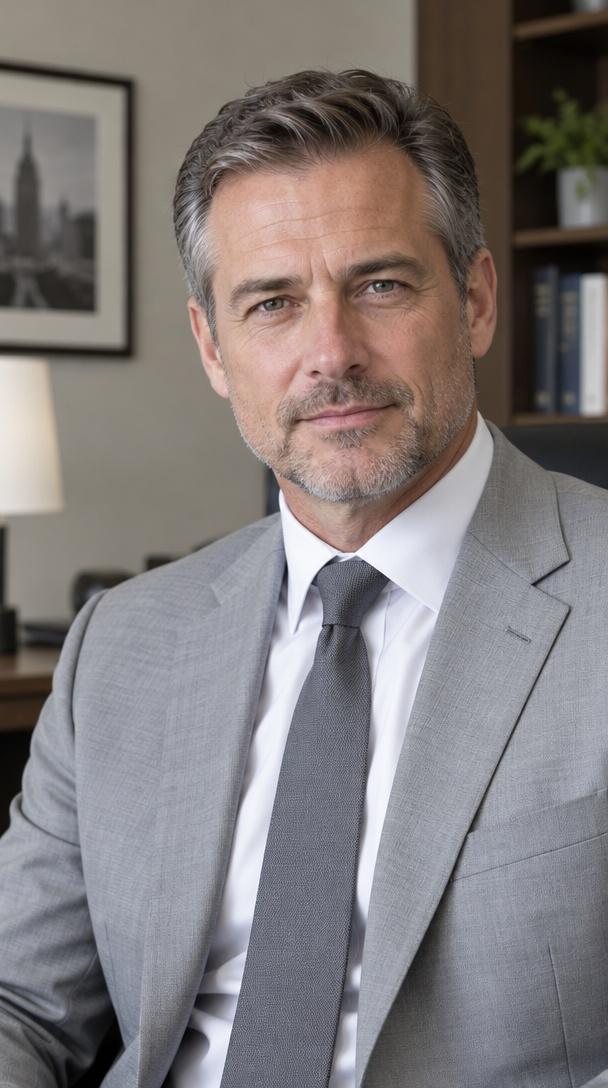
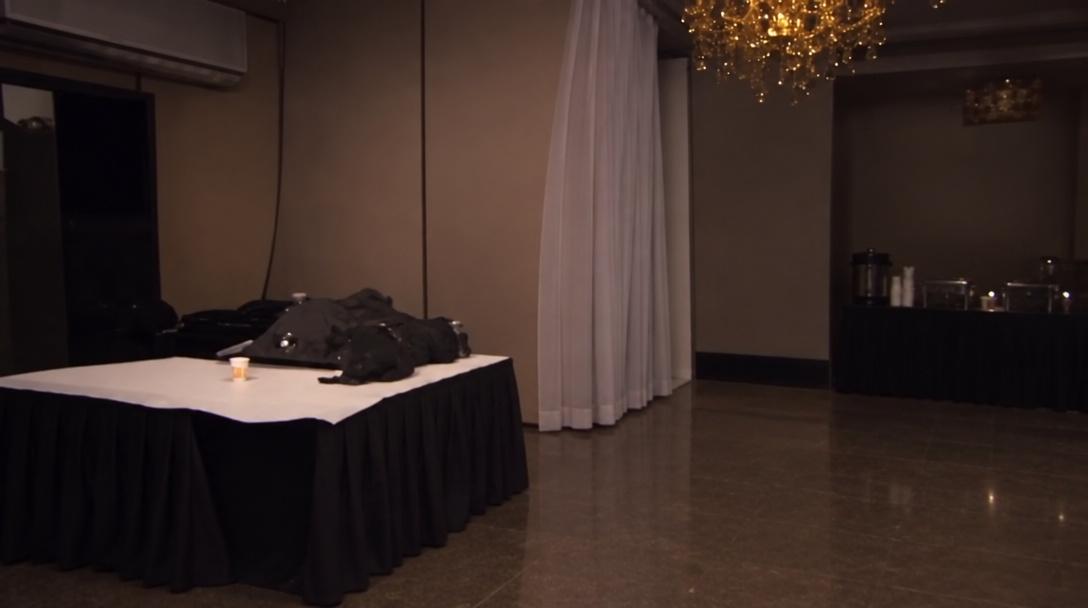
The example pairs the character portrait shown here with a chandelier-lit party setting. In the demo, the suited lead holds a cup, moves with the performance, and gestures close to the camera while guests remain in the background. Compare the face and clothing in the reference portrait with the moving result above to see what the template is designed to carry into the scene.
The template opens with two image references, a motion video, and a prepared prompt. Image 1 supplies the character; Image 2 supplies the setting. The video guides movement and camera timing. To start, replace only Image 1 with your own portrait. Keeping the other references and prompt intact gives you a useful starting point before experimenting with the scene.
How to make a Burning Bridges AI video
Open the template
Select the template button to open Reference to Video with Burning Bridges selected. Review the loaded references and prompt. Sign in when needed to use the editor and generate your video.
Replace the character photo
Replace Image 1 with a clear portrait of the person you want in the scene. Keep Image 2 and the motion video for your first attempt. Preserve the prompt's reference labels so they still match the correct inputs.
Generate and review
Check the duration, aspect ratio, resolution, and displayed credit cost before generating. Watch the complete result: inspect the face during turns, the hand around the cup, and mouth movement. Download the version you like from your results.
Choose a photo that gives the face room to move
Use a well-lit portrait with one clearly visible face and recognizable clothing. A front-facing or gentle three-quarter view is a practical starting point. Keep the head, hair, and shoulders inside the frame; use an image you have permission to upload.
Avoid group photos, heavy beauty filters, motion blur, and hands or sunglasses covering the face. A tiny face in a wide shot gives the model less visual detail to work with. Crop closer without cutting off the top of the head.
If the identity drifts or the hands look awkward, try a sharper portrait before changing every setting. Compare one change at a time. AI motion and lip synchronization can vary; the preview illustrates the template rather than guaranteeing an identical result.
Before you create
Do I need to film myself or write a prompt?
You can start with a portrait. The template already provides the motion reference, setting image, and prompt. Replace the character image first; filming your own performance or writing a prompt from scratch is not required for this preset.
Is this Burning Bridges AI video generator free?
You can view this page and demo without generating. Video creation uses the account access and credits shown in the editor. Check the current cost before submitting; the template is not presented as unlimited free generation.
Will my video have the demo's audio?
The demo includes sound. Your video's audio depends on the selected model and editor settings, so listen to your generated result before publishing. To use a specific soundtrack, you can add music you have permission to use after exporting your video.
Can I post the result as a vertical video?
The current template starts in 16:9 landscape. For a vertical post, review the available output settings or crop your downloaded video. Check that the face, cup, and gestures remain visible; a tighter crop can remove part of the party scene.
Explore another performance
For more photo-based dance ideas, explore AI Dance. To build a different scene using your own images, motion video, or audio, open Reference to Video and choose the references that suit your project.