Hints:

Describe what you like to see — include subject, style, mood, colors, and details.

0/1500
Credits Details: 30
1

Image to Video

Kling
Minimax
Wan
PixVerse
Grok

Use Collart's image to video generator to animate a photo with a motion prompt. Choose a video model, adjust the available settings, and preview the result before downloading. Start with a portrait, product shot or landscape.

Key Features

Create an image to video clip from a still photo. Describe how the subject should move and how the camera should follow, then review the generated animation.

How to use image to video

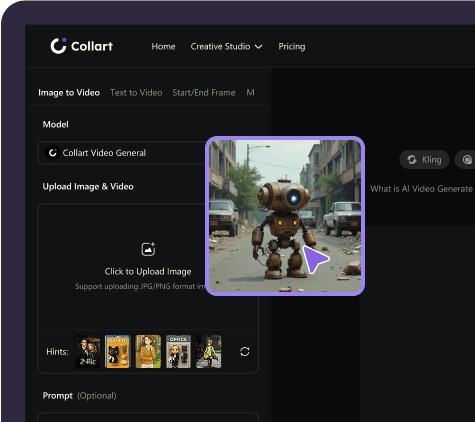
  1. Upload Image

    Start your image to video project with a clear JPG or PNG. Keep the main subject visible and leave enough room for the movement you want.

    Upload Image
  2. Describe and generate

    Write an image to video prompt describing the subject's action and the camera movement. Choose a model, then adjust its available duration and resolution settings. Check the displayed credit cost before starting image to video generation. Waiting time varies by model and queue, so review your settings before submitting.

    Describe and generate
  3. Preview and download

    Play your image to video result from beginning to end. Check faces, hands, product details and camera motion, then download the clip when you are satisfied.

    Preview and download

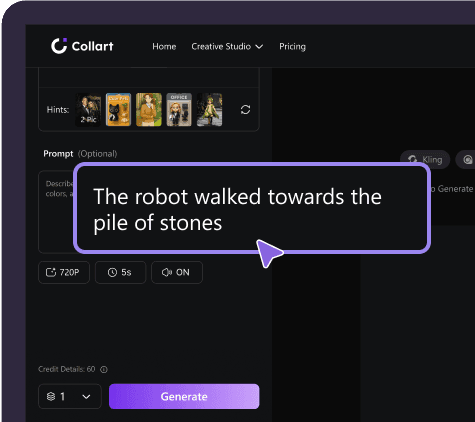
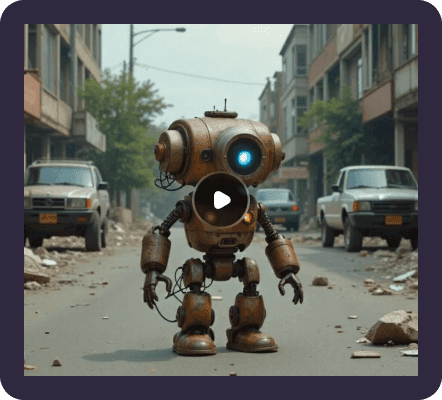
Interface illustrations; check the editor for current models, settings and credit costs.

Real image to video examples

Compare three image to video examples showing a full-body turn, a product splash and a flight through a coastal arch. View each source image beside its result, then open the original motion prompt.

Fashion: a full-body turn

A full-body photo becomes a dance clip: the subject steps forward, turns and lets the skirt sweep outward before it settles. The camera follows the movement while keeping the figure in view. Leave room for the action in your source image, then review the face, feet and clothing throughout the result.
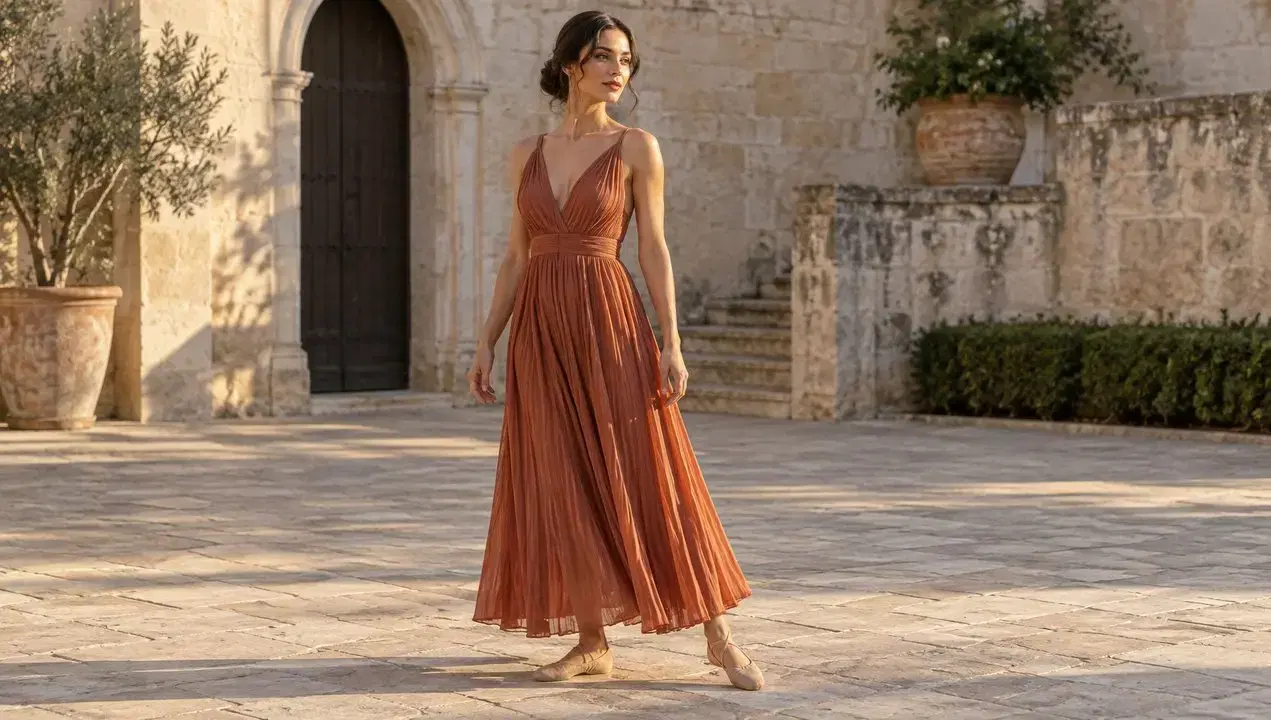
Source image
Fashion: a full-body turn — Source image
Generated video
Original prompt (English)

Animate the supplied image into one continuous eight-second fashion dance shot. Keep the same adult woman, dress, courtyard and lighting. During seconds 0–2 she takes two confident steps forward and opens her arms outward below shoulder height. During seconds 2–6 she performs one complete, clearly readable full-body turn, with the pleated skirt opening into a broad flowing shape and the dress fabric following her momentum. During seconds 6–8 she finishes with a balanced step, faces the camera, and lets the fabric settle naturally. Show believable weight transfer and feet contacting the ground. Keep her entire body in frame. The camera tracks slightly backward to preserve headroom and full-body framing, following with a smooth modest arc, without cuts or zoom jumps. Native audio: light footsteps and fabric swishes timed to the movement, quiet courtyard ambience, no speech or music. Preserve her appearance and garment construction; no extra people or limbs.
Product: a splash of motion

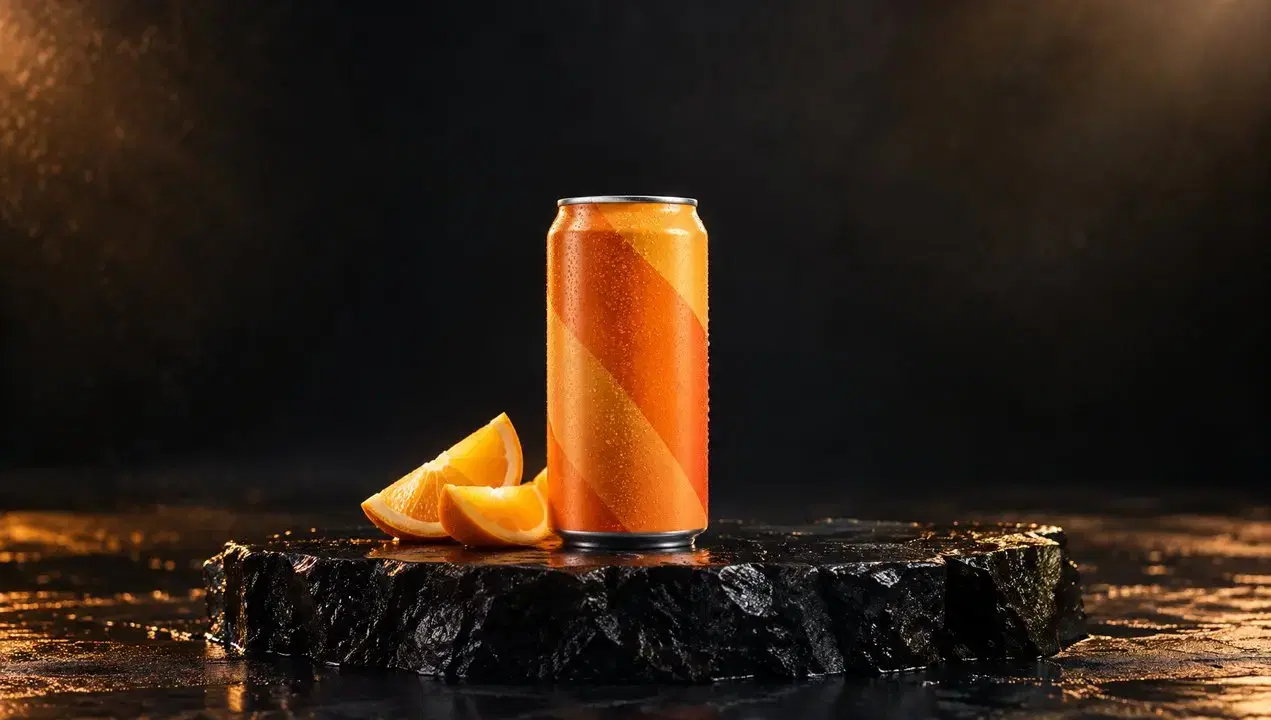
Water splashes around an orange drink can, then falls and settles on the wet surface. The splash adds energy while the can remains the visual focus. For your own product animation, describe one main event, then check the packaging, edges and water movement before publishing.

Source image
Product: a splash of motion — Source image
Generated video
Original prompt (English)

Create one continuous eight-second premium beverage commercial from the supplied image. Keep the exact can shape, orange geometric packaging, upright position and supporting surface. A broad sheet of clear water enters from behind the can during seconds 0–2. During seconds 2–5 it sweeps in one dramatic curved splash behind and around the lower sides of the can; bright droplets separate and fall under gravity. Keep the front of the product readable and its outline visible. During seconds 5–8 the remaining droplets land on the wet plinth and the water settles. The camera makes one smooth approximately sixty-degree orbit and finishes slightly closer to the product. The can stays planted; the orange wedges remain in place. Native synchronized splash and falling-droplet sounds, no speech or music. No cuts, no additional cans, no morphing packaging, no generated text.

Landscape: fly through the scene

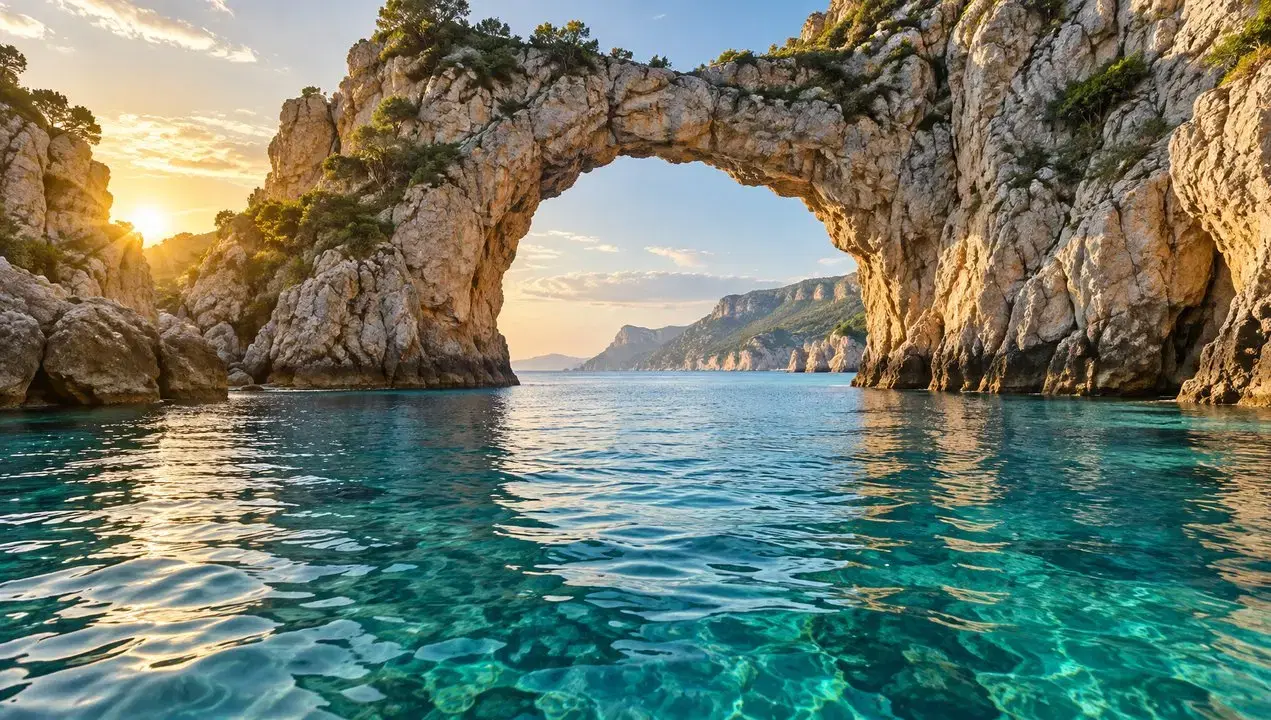
The camera skims the water, passes through a rock arch and opens into a wider coastal view. A still landscape becomes a journey through space, with foreground rocks moving past the lens. Choose an image with a clear route and distinct depth layers, then check that the scenery stays connected.

Source image
Landscape: fly through the scene — Source image
Generated video
Original prompt (English)

Animate the supplied landscape into one continuous eight-second cinematic FPV-style camera journey. Start at the exact viewpoint of the image. During seconds 0–2 accelerate forward just above the water, with ripples moving quickly beneath the camera. During seconds 2–5 fly smoothly through the open natural rock arch, showing strong parallax as the rock edges pass on both sides. During seconds 5–8 gently bank right and rise to reveal the open bay already visible beyond the arch, easing the speed near the end. Preserve the geography and proportions of the arch and coastline throughout. Natural water movement and warm sunlight. Native audio: wind building with speed and soft sea ambience. No cuts, no teleportation, no scene morphing, no drone visible, no speech or music.

More creative effects

Choosing an image for image to video generation

  • Keep the subject complete

    For image to video scenes with large movements, keep faces, hands, paws and product edges inside the frame. Leave space around the subject so a turn or step has room to unfold.

  • Separate subject and background

    Image to video generation starts with the details in your photo. Choose a sharp image with a clearly visible subject; heavy blur, overlapping objects or busy backgrounds can make the intended motion harder to describe.

  • Match the intended format

    Plan your image to video crop for the final placement, such as a vertical social clip or a horizontal product presentation. Keep important details away from the edges and allow space for camera movement.

Why choose Collart

Collart brings image to video generation and preview into one workspace. Upload your image, describe its movement and review the result before deciding whether to adjust the prompt or download the clip.

Your settings

Choose from the duration and resolution options available for your selected model.

AI-Powered

Turn images into cinematic videos with prompt-guided motion.

Impact

Create short clips for product presentations and social posts.

Explore More Inspiration from Collart AI Templates

Helicopter
NO BATIDAO
Chanel Dance
Baby Dance
Cartoon Pet
Tender Embrace
Cat Love
Luxury Hotel
Private Moments
Love on Film
Aqua Flex
Urban Pup
View more

Unleash The Full Potential of Collart AI

Image to Video
Text to Video
Start/End Frame
Motion Sync
Text to Image
Image to Image

Frequently Asked Questions

Turn Your Ideas into Stunning Visuals

Try Now
AI Image to Video Generator | Animate Photos | Collart