Add References
Select a model, then add at least one supported image or video; add audio only when the editor offers it. Reorder filled slots if needed.

 Seedance 2.5Seedance 2.0Seedance 2.0 MiniSeedance 2.0 Fast
 Minimax
 Wan
WanCombine at least one uploaded reference with a required scene prompt. Images and videos are supported, audio appears only for compatible models, and optional @ tags can target individual assets.
Review media slots, prompt targeting, and the selected model's displayed limits before turning a mixed-reference brief into a generation request.
Mixed Reference Slots
Images and videos share reorderable reference slots. Compatible audio appears only when the selected model supports it, so the available media controls reflect the active configuration.
Optional @ Targeting
The scene prompt is required, while @ tags are optional. Add one when an instruction should target a particular asset; otherwise the editor asks for confirmation.
Limits Change with the Selected Model
Supported media, reference counts, and duration checks come from the selected model. Follow the guidance and validation currently displayed before submitting the request for generation.

Use still references to suggest a subject's appearance, product details, setting, or composition. The prompt can then describe the requested action and camera treatment.
A video reference can suggest movement, pacing, or camera language for the request. Describe which qualities matter instead of assuming the output will duplicate every frame.
When the selected model enables audio references, a sound file can contribute timing or sound direction. Availability remains conditional, so use only the controls shown.
Select a model, then add at least one supported image or video; add audio only when the editor offers it. Reorder filled slots if needed.
A scene prompt is required. Describe the action and camera direction, and use @ tags when separate instructions should target particular uploaded assets.
Review the selected model's displayed reference guidance and media checks. Resolve validation messages, submit the request, then assess the result against your prompt and sources.

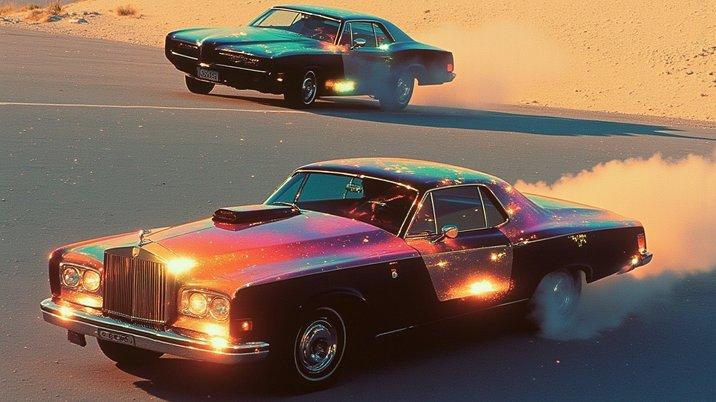
Reference assets can establish a subject, product, composition, or other visual direction while the prompt describes the scene and motion. These examples come from reference-image and prompt workflows used by supported model pages.
This Wan example pairs a still reference with a motion prompt, showing how source imagery can establish visual material while the prompt requests action.
It combines at least one uploaded reference with a required scene prompt. Media provides source direction, while the prompt describes the requested scene and motion.
The mixed slots accept supported images and videos. Audio is available only when the selected model's reference configuration enables that media type.
Yes. Enter a non-empty prompt describing the intended scene, action, or camera direction before submitting a Reference to Video request.
No. @ tags are optional. Without one, the editor asks you to confirm before continuing, so you can add targeting or proceed intentionally.
The count depends on the selected model. Use the reference guidance and validation displayed in the editor instead of assuming one universal limit.
No. Media duration checks are model-specific. Review the current upload guidance, then shorten, remove, or replace any file that exceeds a displayed limit.
Yes. Reorder filled slots before generation, then check the prompt and any @ tags so each instruction still points to the intended asset.
Yes. A model change can alter available settings, supported media, and validation. Review the newly displayed controls before finalizing references or submitting.