Add the Start Frame
Upload the image that should establish the subject and composition at the beginning of the video.
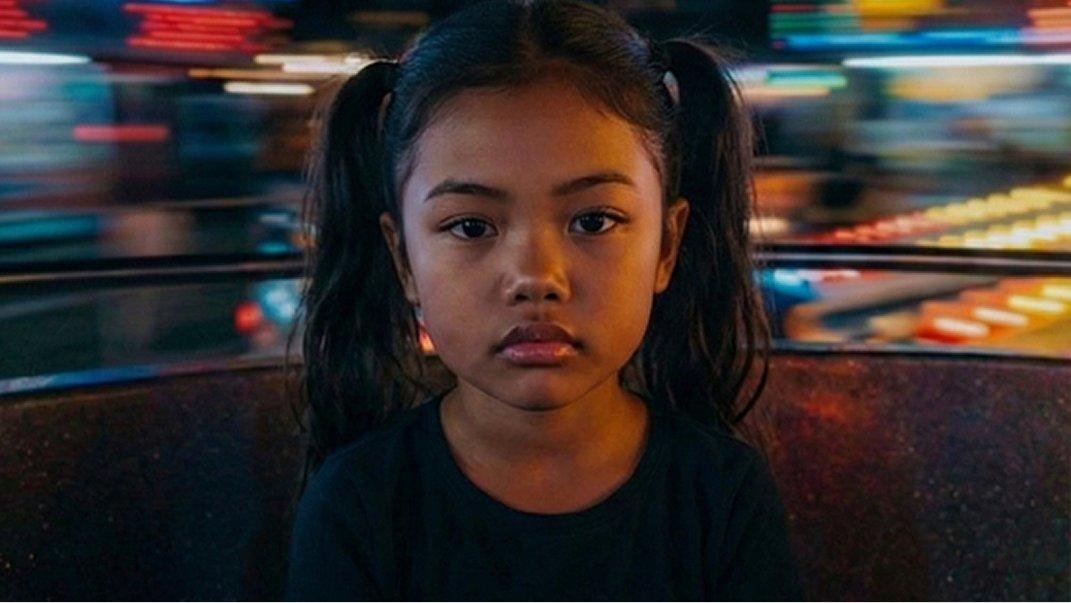
Use one required image for the opening frame and another for the closing frame. Separate slots preserve their roles, Swap reverses the order, and an optional prompt can suggest the transition.


The images establish two endpoints. The selected model generates the intermediate motion, while an optional prompt can request an action, camera direction, or visible change.
Two Required Endpoint Roles
Separate opening and closing slots give each upload a fixed role. Both must contain an image, and the labels help you review their intended order before generation.
Optional Transition Direction
Add an optional prompt when you want to suggest an action, camera direction, or visible change between the two uploaded frames.
End-Frame-Aware Model Controls
The selector offers models configured for end-frame input. Review the duration, ratio, resolution, and other controls displayed for your choice before submitting the request.
Upload the image that should establish the subject and composition at the beginning of the video.
Upload the required closing image, then use Swap if the two endpoint images are in the wrong order.
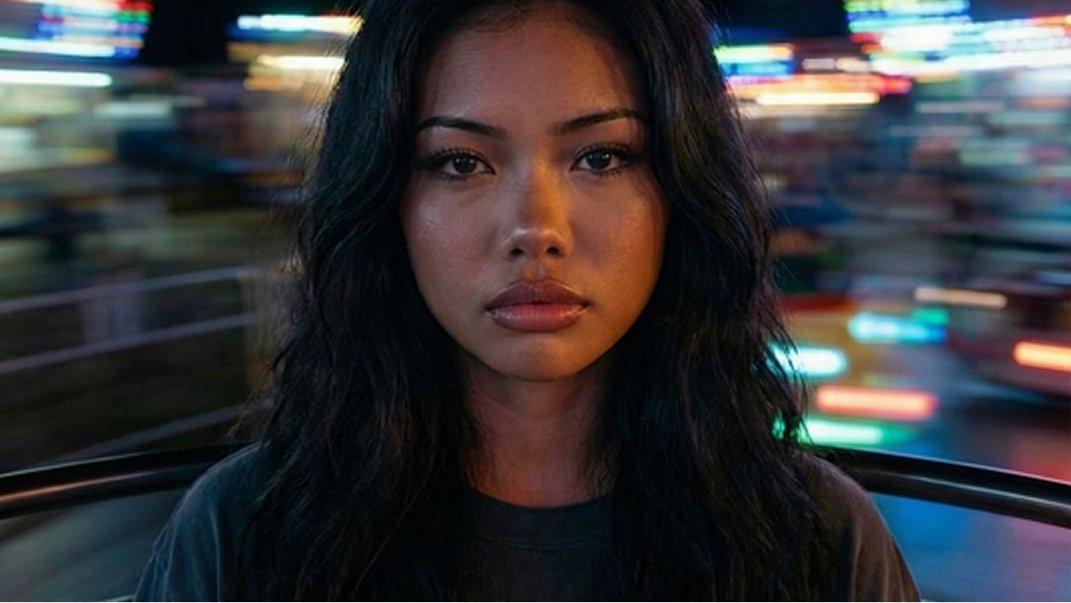
Optionally describe the transition, choose an available model, review its displayed controls, and start generation.
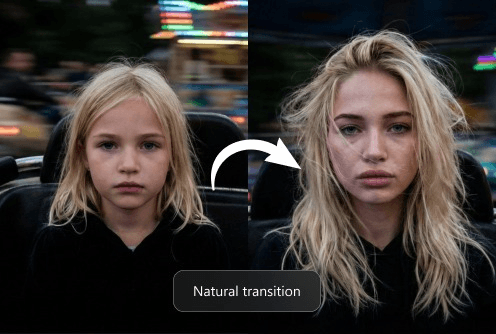
Use two endpoints when both states matter, including a reveal, character change, match cut, or planned storyboard transition.
It is a two-image workflow that submits one upload as the first frame and the other as the last frame within one ordered start-to-end generation request.
Yes. Generation remains unavailable until both the opening and closing slots contain an image. The editor checks these two required inputs first during submission.
No. Add an optional prompt only when you want to request movement, camera direction, or a particular type of change.
Yes. Swap exchanges the two slot positions without another upload. Check the labels afterward to confirm the intended direction again.
Use the models displayed in this scene's selector. Its choices are configured for end-frame input and may change with product updates.
No. Duration, ratio, resolution, and other controls depend on the selected model. Use the settings currently displayed in the editor.
It suits planned reveals, before-and-after states, transformations, storyboard beats, and match-cut ideas where both endpoints matter to the intended sequence.
Not necessarily. Review the intermediate motion and closing state, then adjust the order, prompt, model, or displayed settings when needed.